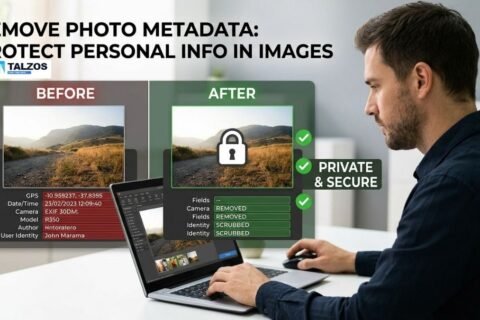
Every photo you take carries more than just pixels—it carries a hidden digital footprint. That footprint is called metadata, and if you’re sharing images online, it could be revealing far more about you than you realize. Using an image metadata remover before posting or sending photos is one of the simplest yet most powerful steps you can take to protect your privacy in 2026.
In this guide, we’ll break down what image metadata is, why it’s a privacy risk, and how you can easily strip it using the right tools—without losing image quality or convenience.
What Is Image Metadata (EXIF Data)?
Metadata is essentially “data about data.” In photography, it’s information embedded directly into your image file by your camera or smartphone. The most common type is EXIF (Exchangeable Image File Format), which stores technical and contextual details about how and where a photo was taken.
Typical EXIF fields include:
- Date and time the photo was captured
- Camera or phone model (e.g., iPhone 15, Canon EOS R6)
- Camera settings like shutter speed, aperture, ISO, and focal length
- GPS coordinates (if location services were enabled)
- Software used for editing (e.g., Photoshop, Lightroom)
- Author or copyright info, if added
Most people never see this data—it’s invisible in normal viewing. But it’s still there, traveling with your image wherever it goes.
The Hidden Privacy Risks of Sharing Photos with Metadata
You might think sharing a cute pet photo or a sunset snap is harmless. But if that image still contains metadata, you could unintentionally be handing strangers a detailed map of your life.
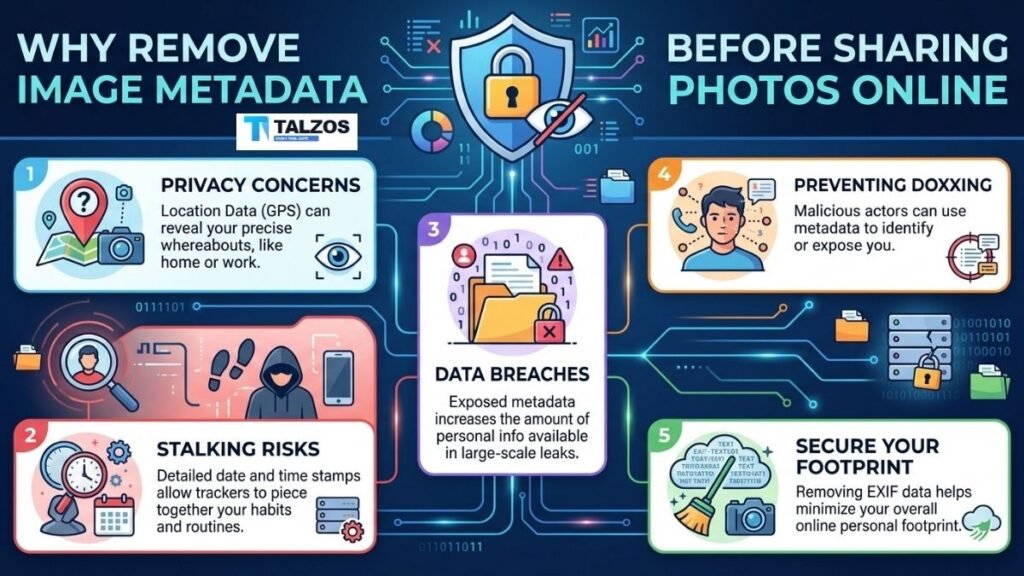
1. Exact Location Exposure
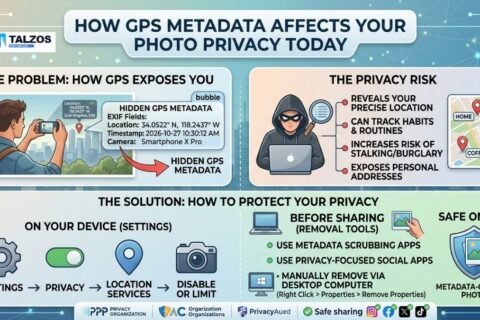
The biggest risk comes from GPS coordinates. Modern smartphones embed precise latitude and longitude in photos by default—often accurate to within a few meters.
That means someone who downloads your image can:
- Pinpoint your home address from a backyard or window photo
- Identify your workplace, your child’s school, or your regular gym
- Track your travel patterns if you share multiple geotagged images over time
For parents, journalists, activists, or anyone concerned about stalking or harassment, this is a serious threat.
2. Device and Software Fingerprinting
Metadata also reveals what device you used and sometimes which apps you’ve edited with. While that might seem harmless, it can:
- Help bad actors tailor phishing or scam messages (“We noticed you use an iPhone 15…”)
- Expose professional workflows for photographers or creators
- Leak internal file paths or usernames in some editing software metadata
3. Time and Routine Tracking
Timestamps in EXIF data show exactly when a photo was taken. Combined with location data, this can reveal:
- When you’re home or away
- Your daily commute times
- When your house is likely empty (a red flag for burglars)
4. Professional and Legal Risks
For professionals, metadata can cause real problems:
- Photographers might accidentally leak client locations or unreleased shoot details
- Journalists could expose sources or sensitive locations
- Businesses might reveal internal tools, software versions, or workflows
Do Social Media Platforms Remove Metadata Automatically?
Many people assume platforms like Instagram, Facebook, or Twitter strip metadata on upload. The reality is more nuanced.
- Most major social networks (Instagram, Facebook, X/Twitter, TikTok) do remove or heavily sanitize EXIF data when you upload images through their apps or websites.
- However, this isn’t universal. Some platforms, messaging apps, or file-sharing services do not strip metadata.
- Direct file sharing (email attachments, WhatsApp “Document” mode, Discord file uploads, cloud links, forums, marketplaces) often preserves the original file—including all metadata.
The safest rule: Never assume metadata is removed. If privacy matters, strip it yourself before sharing.
Why You Should Use an Image Metadata Remover
An image metadata remover is a tool designed to strip EXIF and other metadata from your photos before you share them. Using one gives you:
- Control: You decide what information travels with your image.
- Consistency: You don’t have to rely on each platform’s behavior.
- Peace of mind: Even if a file is downloaded or reshared, sensitive data is already gone.
Think of it like blurring a license plate in a street photo—except this is about your digital license plate: your location, device, and identity markers.
How to Remove Metadata from Photos (Step-by-Step)
You don’t need to be a tech expert to clean your photos. Here are practical ways to remove metadata on different devices.
On iPhone (iOS)
- Before sharing via Messages or Mail:
- When you tap Share, iOS sometimes offers a “Options” menu.
- Turn off “Include Location” or “All Photos Data” if available.
- Use a dedicated app:
- Apps like “Metapho,” “ViewExif,” or “EXIF Metadata” let you view and remove EXIF data before exporting or sharing.
- Screenshots as a quick workaround:
- Taking a screenshot of your photo creates a new image without the original EXIF data (though it adds new screenshot metadata, usually without GPS).
On Android
- Google Photos:
- Open the photo → tap the three-dot menu → look for “Remove location” or “Edit location.”
- Some versions allow you to strip location data before sharing.
- Third-party apps:
- Apps like “Scrambled Exif,” “Photo Exif Editor,” or “Metadata Remover” can clean files before you share them.
- Share via “Copy” or “Screenshot”:
- Similar to iOS, creating a derived image often drops most original metadata.
On Windows
- File Properties:
- Right-click the image → Properties → Details tab.
- Click “Remove Properties and Personal Information.”
- Choose “Remove the following properties” and select items like GPS, camera model, etc.
- Dedicated tools:
- Free tools like Exif Cleaner, ImageMagick, or online EXIF removers can batch-process folders of images.
On Mac
- Preview app:
- Open the image in Preview → Tools → Show Inspector → EXIF tab.
- Unfortunately, Preview doesn’t directly remove EXIF, so you’ll need a third-party app.
- Third-party apps:
- Tools like ExifCleaner, Metapho (via iOS sync), or command-line ExifTool give full control.
- Automator or Shortcuts:
- You can create a macOS Shortcut that exports images without metadata for quick batch cleaning.
Online Tools (Use with Caution)
Many websites offer “remove EXIF” services. While convenient:
- Check their privacy policy: Some upload your images to their servers, which defeats the purpose.
- Prefer client-side tools: Tools that process images in your browser (without uploading) are far more private.
For sensitive photos (family, home, documents), avoid online upload-based cleaners entirely.
Best Practices for Privacy-Safe Photo Sharing
Removing metadata is a huge step, but combine it with these habits for maximum protection:
- Disable geotagging by default in your camera or phone settings if you don’t need it.
- Review photos before posting, especially those taken at home, work, or with identifiable landmarks.
- Use “Document” or “File” modes carefully in messaging apps—they often preserve original files and metadata.
- Educate family and friends, especially kids, about the risks of sharing location-rich images.
- For professionals, create a preset or export profile that strips metadata by default in Lightroom, Photoshop, or your editing suite.
Common Myths About Image Metadata
“Metadata is useful, so I should keep it.”
Metadata is great for personal organization—sorting photos by date, location, or camera settings. But once an image leaves your private library, that usefulness becomes someone else’s intelligence about you. Keep metadata for your archives; remove it for sharing.
“Only professionals need to worry about EXIF.”
Not true. Anyone with a smartphone can leak their home address, daily routes, or routines via a single photo. Privacy isn’t just for photographers or journalists—it’s for everyone.
“I’ll just blur faces; that’s enough.”
Blurring faces protects identity, but not location or device info. A blurred photo of your front yard with intact GPS data still reveals where you live. Layer your defenses: blur sensitive visuals and strip metadata.
Choosing the Right Image Metadata Remover
Not all tools are created equal. When picking an image metadata remover, consider:
- Privacy: Does it process files locally (on your device) or upload them? Local is always safer.
- Formats supported: JPEG, PNG, HEIC, RAW? Make sure it handles your camera’s files.
- Batch processing: Can you clean entire folders at once?
- Ease of use: Is it a one-click solution, or does it require technical steps?
- Platform: iOS, Android, Windows, Mac, or web-based?
For most everyday users, a simple mobile app or built-in OS feature is enough. Power users and professionals may prefer command-line tools like ExifTool for full control.
Final Thoughts: Make Metadata Removal a Habit
In a world where a single photo can reveal your home, habits, and hardware, removing metadata isn’t paranoia—it’s basic digital hygiene. An image metadata remover is a small tool with an outsized impact on your privacy.
Before you hit “send” or “post,” ask yourself:
“Does this image need to carry my location, device, and timestamp with it?”
If the answer is no (and it almost always is), strip the metadata. Your future self—and your personal security—will thank you.