
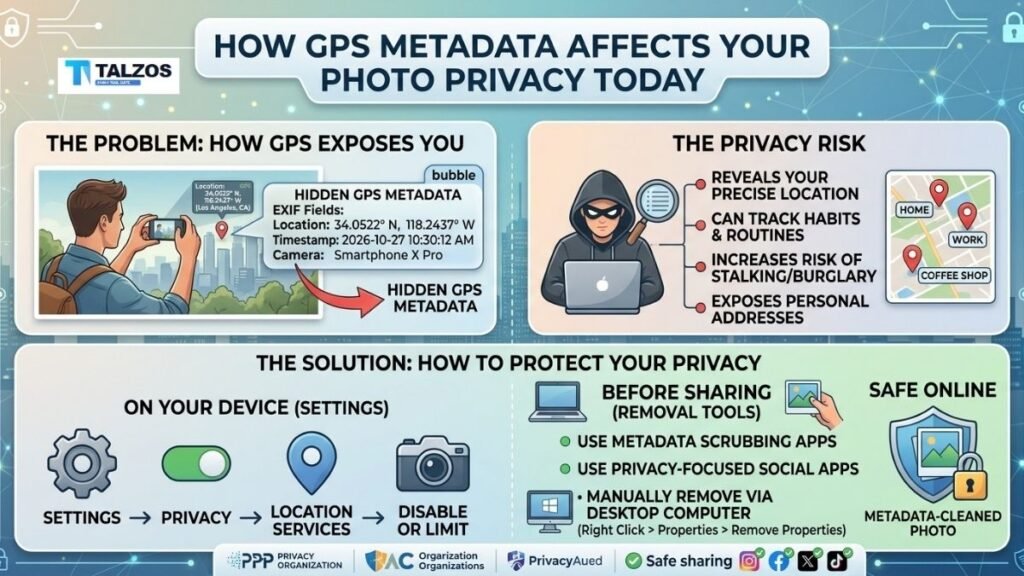
Every photo you take carries more than just pixels. Hidden inside most images is a layer of data called EXIF metadata, and it often includes precise GPS coordinates showing exactly where the photo was captured. For many people, this feels harmless—until they realize that sharing an unedited photo can unintentionally reveal their home address, daily routines, or even when they’re away on vacation.
In this guide, we’ll break down what GPS metadata is, why it matters for your photo privacy, real-world risks, and exactly how to remove or control it on iPhone, Android, Windows, and Mac. Whether you’re a casual social media user, a parent sharing kids’ photos, or a content creator, understanding this invisible data is one of the simplest yet most powerful steps you can take to protect yourself online.
What Is GPS Metadata in Photos?
GPS metadata is a type of EXIF (Exchangeable Image File Format) data automatically embedded by most smartphones and many digital cameras. EXIF stands for Exchangeable Image File Format, and it’s essentially a digital “receipt” stored inside your image file.
Typical EXIF fields include:
- Date and time the photo was taken
- Camera make and model (e.g., iPhone 15 Pro, Canon EOS R6)
- Exposure settings (shutter speed, aperture, ISO)
- Orientation (portrait/landscape)
- GPS latitude, longitude, and sometimes altitude
When your phone’s location services are enabled for the camera app, it writes your exact coordinates into the photo at the moment you press the shutter. This can be accurate to within a few meters, which is great for mapping your hikes but risky when posting online.
Why GPS Metadata Matters for Photo Privacy
At first glance, location-tagged photos seem convenient. They help you organize albums by place, revisit favorite spots in Google Photos or Apple Photos, and even find images of “that café we went to last summer.” But the same feature that powers these conveniences also creates privacy risks when photos leave your device.
Your Photos Can Reveal Your Home Address
If you share a photo taken at or near your home with GPS metadata intact, anyone who downloads the image can extract your coordinates and reverse-geocode them into a street address. This doesn’t require advanced hacking skills—free online EXIF viewers and simple scripts can pull this data in seconds.
For example, a parent posting a picture of their child’s backyard birthday party might think they’re just sharing a cute moment. But if the original file is shared (via email, messaging apps that don’t strip metadata, or certain forums), the embedded GPS data could pinpoint their home.
Patterns of Movement and Routine Exposure
One photo might not seem dangerous, but multiple photos over time can reveal patterns:
- Photos tagged at your gym every weekday at 7 a.m.
- Images from your child’s school during drop-off times
- Regular check-ins at a specific workplace or medical clinic
Stalkers, burglars, or malicious actors can use this information to learn when you’re likely to be home or away, where your kids go to school, or even your regular routes. This is especially concerning for people in sensitive professions, those dealing with harassment, or families with young children.
Social Media Doesn’t Always Strip Metadata
Many major platforms (like Instagram, Facebook, and Twitter/X) automatically remove EXIF data when you upload photos through their apps. However, this isn’t universal:
- Some platforms retain metadata in certain contexts (e.g., direct messages, downloadable albums).
- Messaging apps like WhatsApp, Telegram (in “file” mode), and email often preserve the original file with metadata intact.
- If you share via cloud links (Google Drive, Dropbox) or send the original file, recipients can access full EXIF data.
Assuming “the app will handle it” is a common but risky shortcut.
Real-World Scenarios Where GPS Metadata Backfires
Vacation Posts That Advertise an Empty Home
A classic mistake: posting a geotagged photo from your airport departure gate or a faraway resort while your house sits empty. Even if the platform strips metadata from the visible post, the original file might still circulate in group chats or backups. Burglars monitoring local social media can use this to time break-ins.
Sensitive Locations and Personal Safety
Photos taken at:
- Domestic violence shelters
- Support group meetings
- Medical facilities
- Religious or political gatherings
can expose your presence at these locations if GPS data remains. For people in vulnerable situations, this isn’t just theoretical—it’s a genuine safety threat.
Professional and Legal Risks
Journalists, activists, and whistleblowers sometimes accidentally reveal source locations or safe houses through unstripped photos. In legal disputes (e.g., custody cases, insurance claims), EXIF timestamps and GPS data have been used as evidence to contradict alibis or establish timelines.
How to Check If Your Photos Contain GPS Data
Before you can protect your photo privacy, you need to know what’s in your files. Here’s how to check on common devices:
On iPhone (iOS)
- Open the Photos app.
- Tap a photo, then tap the info (i) button or swipe up.
- If a map appears under the photo, it contains GPS data.
On Android
- Open the photo in Google Photos or your gallery app.
- Tap the three-dot menu or Details.
- Look for a location or map section.
On Windows
- Right-click the image file → Properties.
- Go to the Details tab.
- Scroll to the GPS section to see latitude/longitude if present.
On Mac
- Open the photo in Preview.
- Go to Tools → Show Inspector (or press
Cmd+I). - Click the More Info (i) tab, then the GPS tab.
If you see coordinates or a map, your photo has GPS metadata.
How to Remove GPS Metadata and Protect Your Photo Privacy
The good news: removing or preventing GPS metadata is straightforward once you know where to look. Below are practical, step-by-step methods for each major platform.
iPhone: Disable Geotagging and Strip Location Data
Prevent future GPS tagging:
- Go to Settings → Privacy & Security → Location Services.
- Scroll to Camera and set it to Never.
This stops new photos from storing location data.
Remove GPS from existing photos:
- Open the photo in Photos.
- Tap the info (i) button.
- Tap Adjust under the map, then No Location.
When sharing:
- Tap Share, then Options at the top.
- Turn off Location and All Photos Data.
This ensures the shared copy has no metadata.
Android: Turn Off Location Tags and Clean Photos
Stop future geotagging:
- Open your Camera app.
- Go to Settings.
- Disable Location tags, Geotagging, or Save location (wording varies by brand).
Remove GPS from existing photos (Google Photos):
- Open the photo in Google Photos.
- Tap the three-dot menu.
- Tap Remove location.
Some gallery apps also let you edit or remove location under Details → Edit.
Windows: Strip Metadata Before Sharing
- Right-click the photo → Properties.
- Go to the Details tab.
- Click Remove Properties and Personal Information at the bottom.
- Choose Create a copy with all possible properties removed (recommended).
This creates a clean version while preserving your original.
Mac: Remove GPS via Preview or Photos
Using Preview:
- Open the photo in Preview.
- Go to Tools → Show Inspector (
Cmd+I). - Click the More Info (i) tab, then GPS.
- Click Remove Location Info.
Using Photos app:
- Open the photo in Photos.
- Press
Cmd+Ior go to Image → Location. - Choose No Location or revert to original location.
Cross-Platform Tools and Online Options
If you want a quick, one-step solution that works on any device:
- Online EXIF removers: Sites like FormatDrop, PixelPeeper, and dedicated EXIF stripper tools let you drag in photos and download clean versions without uploading to a server (some process entirely in-browser).
- Dedicated apps: Apps like “Exif Remover PI” on Android or similar iOS tools let you batch-remove metadata locally.
- Command-line (advanced): Tools like
exiftoolcan strip GPS data with a single command (e.g.,exiftool -gps:all= photo.jpg).
For sensitive photos, prefer tools that process locally rather than uploading to unknown servers.
Best Practices for Long-Term Photo Privacy
Removing GPS data after the fact helps, but building habits around photo privacy is even better.
1. Disable Camera Location Access by Default
Unless you specifically need geotagging (e.g., for travel journals or mapping hikes), keep your camera app’s location access set to Never. You can always manually tag locations later in albums if needed.
2. Share “Clean” Copies, Not Originals
When sending photos via email, messaging apps, or cloud links:
- Use your device’s share options that strip metadata (e.g., iPhone’s “Options → Location off”).
- For important images, run them through an EXIF remover first.
- Avoid sending “original file” versions unless absolutely necessary.
3. Audit Your Cloud Photo Libraries
Services like Google Photos, iCloud Photos, and OneDrive often store full-resolution originals with metadata. Periodically:
- Check privacy settings for shared albums.
- Remove location data from sensitive photos in bulk where possible.
- Be cautious about sharing public links to albums.
4. Teach Family and Friends
Photo privacy isn’t just your responsibility. If you’re in group chats or family clouds, others might share photos of you (or your kids) with GPS data intact. A quick conversation about turning off location tags and stripping metadata can protect everyone.
5. Consider Context Before Posting
Ask yourself:
- Does this photo reveal where I live, work, or regularly go?
- Could someone use this to infer my schedule or routines?
- Is this a sensitive location (school, medical facility, shelter)?
If the answer is yes, either avoid posting, crop out identifying details, or ensure metadata is removed.
Common Myths About Photo Privacy and GPS Metadata
“Social Media Removes All Metadata, So I’m Safe”
Not always. While many platforms strip EXIF from public posts, they may retain it in:
- Direct messages
- Downloadable albums
- Certain file-sharing modes
Assume metadata can persist unless you’ve verified otherwise.
“Only Tech-Savvy People Can Access EXIF Data”
False. Free online tools and mobile apps make viewing EXIF data trivial. You don’t need to be a hacker to extract GPS coordinates from a photo.
“I Don’t Post Much, So It Doesn’t Matter”
Even infrequent posters can be at risk if a single photo reveals a sensitive location or pattern. It’s not about volume—it’s about what that data reveals.
Final Thoughts: Small Habits, Big Privacy Gains
GPS metadata is a powerful feature that becomes a privacy liability the moment your photos leave your device. The risks aren’t hypothetical—real people have had their addresses, routines, and sensitive locations exposed through unstripped photos.
But the solution doesn’t require extreme measures. By:
- Disabling camera location access
- Stripping GPS data before sharing
- Using simple built-in tools or free apps
you can dramatically improve your photo privacy with minimal effort. In a world where digital footprints are constantly tracked, controlling what your photos reveal is one of the most practical steps you can take to protect yourself and your loved ones.
Your photos tell stories. Make sure they don’t tell more than you intend.