In modern workplaces, documents rarely live in isolation. A single project might generate a scope of work, a budget sheet, a timeline, and a set of appendices—all as separate PDFs. Sending five attachments looks messy and increases the chance that someone opens the wrong file or misses a section.
PDF merging solves this by:
- Creating a single, logically ordered document that’s easier to share and review.
- Reducing email clutter and the risk of version confusion.
- Making it simpler to apply consistent naming, branding, and security settings.
- Improving the reader experience, especially on mobile devices where switching between files is cumbersome.
For teams, standardized PDF merging also supports compliance and audit trails: you can keep originals, then distribute a single merged file with a clear structure and table of contents.
Before You Merge: Quick Prep Checklist
Good PDF merging starts before you click “Merge.” A few minutes of prep prevents rework and formatting surprises.
1. Gather and Name Your Files
- Collect all PDFs you want to combine in one folder.
- Rename them to reflect the desired order, for example:
01_Cover.pdf,02_Executive_Summary.pdf,03_Budget.pdf,04_Appendix.pdf. - Confirm you’re using final versions, not drafts. It’s common to accidentally include an outdated file.
2. Check Content and Formatting
Open each PDF briefly to verify:
- All pages render correctly and no content is cut off.
- Page sizes are consistent (e.g., all Letter or all A4). Mixed sizes will still merge but can look inconsistent.
- Orientation (portrait vs. landscape) is intentional. If some sections are landscape, readers may need to rotate their screens.
3. Decide on Structure and Extras
Think about how the final document should behave:
- Do you want a cover page, table of contents, or section dividers? You can add these as separate PDFs and include them in the merge.
- Will you need bookmarks or a combined outline? Some tools let you preserve or merge bookmarks during PDF merging.
- Do you need to compress large files before merging to keep the final size manageable?
Choosing the Right Tool for PDF Merging
Your best tool depends on your workflow, security needs, and budget. Broadly, you have four options:
1. Built-in OS Features (Free, No Install)
Windows (Microsoft Print to PDF)
You can “print” multiple documents to a single PDF using the built-in virtual printer.
- Open the first document, press
Ctrl + P, and choose Microsoft Print to PDF. Save asPart1.pdf. - Repeat for each document, then combine them using a dedicated merger or by printing again into the same file if your workflow supports it.
This method is handy for quick merges but can be clunky for many files or complex ordering.
macOS (Preview)
Preview offers a visual way to merge PDFs:
- Open the first PDF in Preview.
- Show thumbnails via View → Thumbnails.
- Drag additional PDFs from Finder into the thumbnail sidebar at the exact position you want them.
- Save the combined file.
This is great for small jobs and keeps everything local on your Mac.
2. Desktop PDF Software (Paid or Free)
Tools like Adobe Acrobat, Foxit PDF Editor, PDFsam Basic, and PDF24 Creator provide robust PDF merging with extra controls.
Adobe Acrobat (Windows/macOS)
Acrobat is the most broadly suitable option for many users, especially in business environments.
- Open Acrobat and go to Tools → Combine Files.
- Click Add Files or drag and drop your PDFs into the workspace.
- Reorder files by dragging them up or down.
- Optionally enable Merge bookmarks if you need a combined outline.
- Click Combine and save the merged PDF.
Acrobat also lets you compress, secure, and add watermarks in the same workflow—useful for client-facing documents.
Free Desktop Alternatives
If you don’t have Acrobat:
- PDFsam Basic and PDF24 Creator offer ad-free merging with good control over page order and file size.
- Smallpdf Desktop and iLovePDF Desktop provide similar features with simple interfaces.
These are ideal if you handle sensitive data and prefer not to upload files to the cloud.
3. Online PDF Mergers (Fast, Browser-Based)
Online tools are perfect for quick, occasional merges when you don’t want to install software.
Popular options include:
- iLovePDF Merge
- Smallpdf Merge
- pdfFiller Merge
- usepdf.com and other free merge pages
Typical workflow:
- Navigate to the “Merge PDF” page of your chosen tool.
- Drag and drop your PDFs or click Select PDF files to upload them.
- Reorder files by dragging thumbnails into the desired sequence.
- Optional: enable “Preserve bookmarks” if available.
- Click Merge and wait for the server to assemble the document.
- Download the merged PDF; most services delete files after about an hour.
Tips for online PDF merging:
- Ensure all documents use the same page size for consistent output.
- Avoid uploading highly confidential or regulated documents unless the service explicitly states compliance (e.g., GDPR, HIPAA).
- Check hyperlinks and bookmarks after merging if your PDFs rely on internal navigation.
4. Browser Tricks (No Extra Tools)
If you’re on Windows and just need a quick combine:
- Open the first PDF in Microsoft Edge.
- Choose Print → Microsoft Print to PDF, and save as
Combined.pdf. - Open the second PDF, print again to
Microsoft Print to PDF, but this time selectCombined.pdfas the destination to append pages (if your setup supports appending).
This method is less precise than dedicated tools but can work in a pinch.
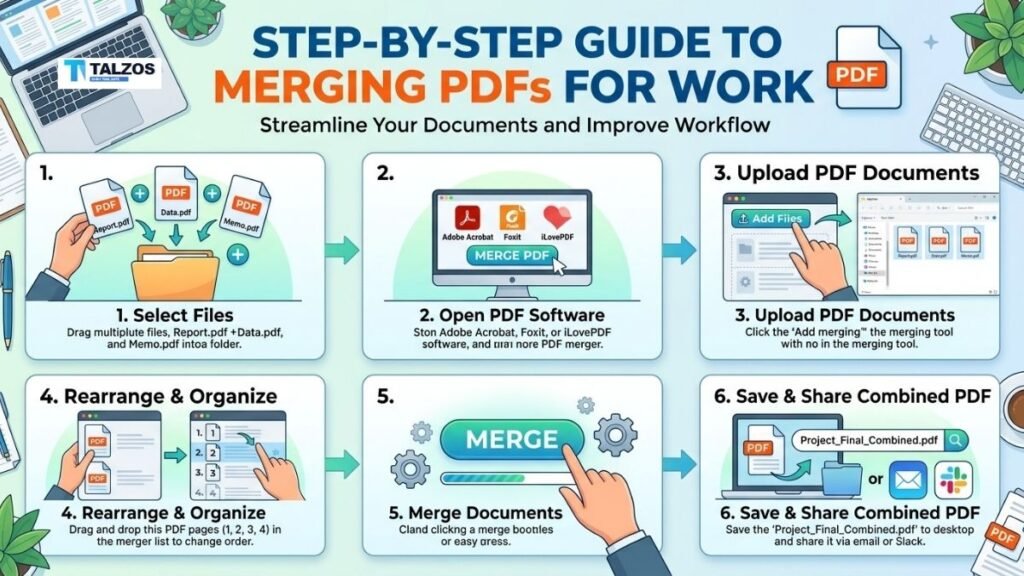
Step-by-Step: Merging PDFs Using an Online Tool
Here’s a concrete, repeatable process you can adapt to most online PDF merging tools.
Step 1: Prepare Your Files
- Put all PDFs in one folder and confirm the order.
- Rename them with numeric prefixes if needed (e.g.,
01_,02_). - Close any unnecessary apps to keep your browser responsive, especially for large files.
Step 2: Open Your Chosen Merge Tool
- In your browser, go to a trusted merge page such as
ilovepdf.com/merge_pdfor your company’s approved tool. - If your organization has security policies, confirm the tool is allowed for your document type.
Step 3: Upload Your PDFs
- Click Select PDF files or drag and drop your files onto the upload area.
- You can select multiple files at once using
Ctrl+Click(Windows) orCmd+Click(Mac).
Step 4: Arrange the Order
- Drag thumbnails up or down to match your intended document structure (cover first, appendices last).
- Double-check the sequence before merging; changing order afterward means re-merging.
- If the tool allows, delete any unnecessary pages or duplicate sections before finalizing.
Step 5: Configure Options (If Available)
Depending on the tool, you might see options like:
- Preserve bookmarks – keeps internal navigation from the original PDFs.
- Compress output – reduces file size for easier sharing.
- Add page numbers or watermarks – useful for branded proposals.
Enable what fits your use case.
Step 6: Merge and Download
- Click Merge PDFs or Combine to start the process.
- Wait for the tool to assemble the document; time depends on file size and count.
- Download the merged PDF to your working folder.
- Open it once to verify:
- All pages appear in the correct order.
- Formatting, images, and tables look intact.
- Bookmarks and links (if any) still work.
Save this file with a clear name, such as ClientX_Proposal_2026-08-31.pdf.
Step-by-Step: Merging PDFs in Adobe Acrobat (Desktop)
If your team uses Adobe Acrobat, this is a reliable, repeatable workflow.
Step 1: Launch Combine Files
- Open Adobe Acrobat.
- Go to Tools in the top-left and select Combine Files.
Step 2: Add Your Documents
- Click Add Files and browse to your PDFs, or drag and drop them directly from File Explorer/Finder into the Acrobat window.
- Add all files you want in the final document.
Step 3: Set the Order
- Drag files up or down to arrange them in the correct sequence.
- Expand individual files if you need to reorder specific pages.
Step 4: Adjust Options
- If available, enable Merge bookmarks to create a combined outline.
- Choose file size or quality settings if your version offers them.
Step 5: Combine and Save
- Click Combine to merge the PDFs.
- Save the new file with a descriptive name in your project folder.
- Quickly scroll through to confirm everything is in order before sharing.
Best Practices for Professional PDF Merging
To make PDF merging a smooth part of your work routine, adopt a few simple habits.
Standardize Your Workflow
- Pick one primary method (e.g., Acrobat for formal docs, an online tool for quick internal merges).
- Create a short, screenshot-based guide for your team showing:
- Where files should live before merging.
- Naming conventions (e.g.,
ProjectName_DocType_YYYY-MM-DD.pdf). - The exact steps for your chosen tool.
Keep an Audit Trail
- Always keep original source PDFs in a dedicated folder before merging.
- This preserves your audit trail and makes it easy to update individual sections later.
Use Structure Aids
- Add a cover page and table of contents as separate PDFs and include them in the merge.
- For long documents, use bookmarks or a built-in table of contents so readers can jump to key sections.
Mind Security and Compliance
- For sensitive contracts, financials, or HR documents, prefer desktop tools or approved enterprise platforms over random online mergers.
- Confirm that any online tool you use complies with your organization’s data policies.
Don’t Over-Merge
- Avoid combining unrelated files just to reduce the number of attachments.
- Logical grouping matters: one merged file per clear purpose (e.g., “Proposal,” “Onboarding Pack,” “Board Report”).
Common Mistakes to Avoid in PDF Merging
Even simple PDF merging can go wrong if you skip basics.
- Wrong file order: Not verifying the sequence before merging leads to confusing documents and rework.
- Mixed page sizes and orientations: Combining Letter and A4, or portrait and landscape, without planning can make the final PDF look unprofessional.
- Using draft versions: Accidentally merging a draft instead of the final file undermines credibility.
- Ignoring file size: Merging many high-resolution PDFs without compression can create huge files that are hard to email or upload.
- Overlooking links and bookmarks: If your source PDFs rely on internal navigation, failing to check them post-merge can break the reader experience.
A quick pre-merge checklist and a post-merge review eliminate most of these issues.
Making PDF Merging a Team Habit
To truly benefit from PDF merging, turn it into a team habit rather than a one-off trick.
- Start with one common workflow, such as proposals or monthly reports.
- Trial a PDF merging tool for a week and time the task before and after adoption.
- Document the process in a shared guide with screenshots and naming rules.
- Review results: if it saves time and reduces errors, expand the practice to other document types.
Over time, consistent PDF merging reduces email back-and-forth, improves document quality, and makes your team look more organized to clients and stakeholders.
Final Thoughts
PDF merging isn’t glamorous, but it’s a high-leverage skill for anyone who works with documents. With the right prep, a suitable tool, and a repeatable process, you can turn fragmented files into polished, professional PDFs in minutes. Use this step-by-step guide as a template: adapt the steps to your tools, embed them in your team’s workflow, and let clean, well-structured documents do the heavy lifting for your work.