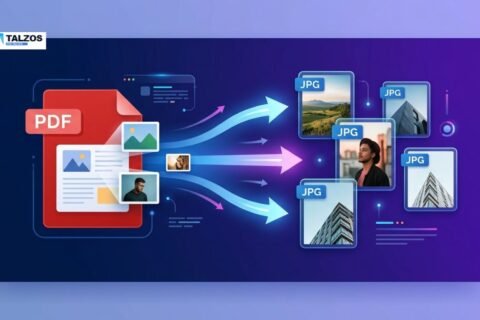
Converting images into PDF documents is one of those tasks that seems complicated until you know the right method. Whether you need to submit a scanned form, combine vacation photos into one file, send an invoice, or create a professional portfolio, a PDF is often the most convenient format.
Unlike image files, PDFs are easier to share, print, organize, and open on different devices. They also preserve the layout of your content, making them useful for work, school, business, and personal projects.
The good news is that you do not need advanced software or technical experience. With the right tool, you can convert one or several images into a PDF in just a few clicks. This guide explains how to convert JPG to PDF using online converters, Windows, Mac, Android, and iPhone devices.
Why Convert Images to PDF?
Image files such as JPG, JPEG, PNG, and HEIC are useful for photos and graphics, but they are not always ideal for documents. A PDF can offer several practical advantages.
Easier sharing
A PDF combines your content into a single file. Instead of sending multiple images separately, you can attach one organized document to an email or upload it to a website.
Better document organization
If you have several images, converting them into one PDF keeps everything together. This is especially useful for receipts, application forms, notes, reports, and multipage scans.
Consistent formatting
Images may appear differently depending on the device or application used to open them. PDFs generally preserve page size, orientation, margins, and positioning more reliably.
Professional presentation
A collection of loose image files may look unfinished. A properly arranged PDF appears cleaner and more professional, especially when sharing business documents, proposals, menus, or presentations.
Convenient printing
PDF files are designed for consistent printing. You can select paper size, page orientation, and margins before saving or printing your document.
What You Need Before Starting
Before you convert JPG to PDF, prepare the images you want to use. A little organization can make the process faster and prevent mistakes.
Start by placing all images in one folder. Rename them in the order you want them to appear, such as:
01-cover.jpg02-receipt.jpg03-invoice.jpg
Check that the images are clear and readable. If the image is blurry, dark, or cropped, converting it into a PDF will not improve its quality. You may need to edit the image first by adjusting brightness, rotating it, or cropping unnecessary areas.
It is also helpful to decide whether you want one PDF containing all images or separate PDF files for each image. Most conversion tools support both options.
How to Convert JPG to PDF Online
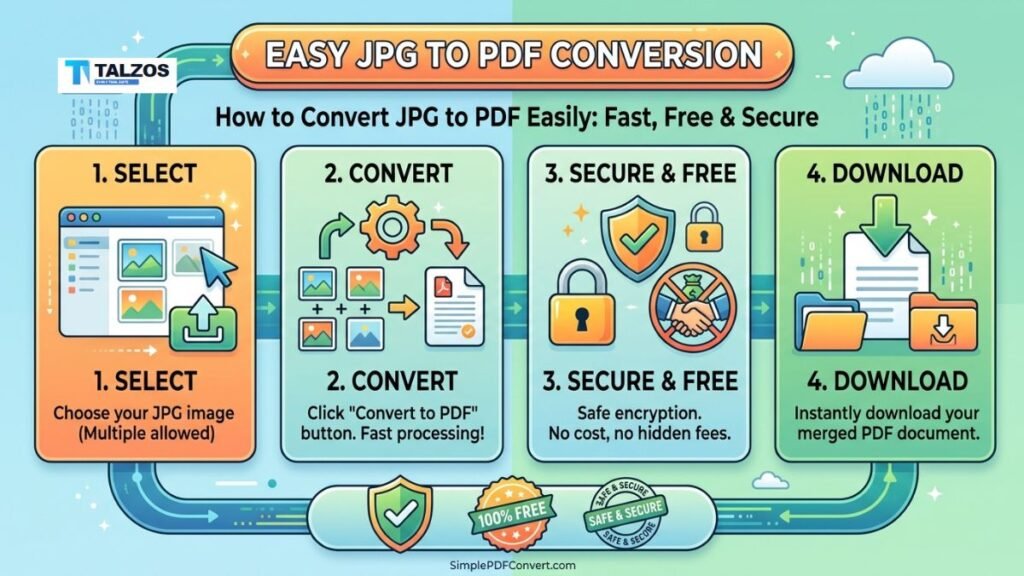
An online converter is usually the quickest option. It works in a web browser and does not require you to install an application.
Step 1: Choose a reliable converter
Search for a reputable JPG-to-PDF conversion tool. Look for a service with a simple interface, clear privacy information, and secure file handling.
Avoid uploading highly sensitive documents to unknown websites. For passports, financial records, medical documents, or confidential business files, an offline method may be safer.
Step 2: Upload your images
Open the converter and select the images from your computer or mobile device. Many tools let you drag and drop files into the browser window.
You may be able to upload multiple images at once. If you are creating a multipage PDF, select every image you want to include.
Step 3: Arrange the page order
After uploading the images, check their order. Drag and drop the files until they appear in the correct sequence.
This step is important when converting documents such as contracts, assignments, receipts, or forms. A single misplaced page can make the final PDF confusing.
Step 4: Adjust the settings
Depending on the tool, you may be able to change:
- Page size.
- Image orientation.
- Margins.
- Image position.
- Page layout.
- PDF quality.
- Compression level.
If you are preparing a document for printing, choose a standard page size such as Letter or A4. For photos, a fit-to-page option may be more appropriate.
Step 5: Convert and download
Click the conversion button and wait for the process to finish. Once the PDF is ready, download it to your device.
Open the file before sharing it. Confirm that all pages are included, the images are readable, and the page order is correct.
How to Convert Images to PDF on Windows
Windows includes built-in tools that can convert images into PDF documents without additional software.
Using Microsoft Print to PDF
This method works with many common image formats.
- Open the folder containing your image.
- Right-click the image and choose Open with Photos.
- Select the print option.
- Choose Microsoft Print to PDF as the printer.
- Select the paper size and layout.
- Click Print.
- Choose a file name and folder.
- Save the new PDF.
To combine several images into one PDF, select the images in File Explorer, right-click, and choose the print option. Depending on your Windows version, you may be able to arrange the pictures and print them as a single PDF document.
Check the preview carefully. Windows may automatically fit an image to the page, which can sometimes create unwanted borders or crop part of the picture.
How to Convert JPG to PDF on Mac
Mac users can use the built-in Preview application.
Using Preview
- Select the image or images you want to convert.
- Open them with Preview.
- If you are using multiple images, display the thumbnail sidebar.
- Arrange the thumbnails in the required order.
- Select File and then choose Export as PDF or use the print option.
- Choose a file name and save location.
- Save the document.
Preview is particularly useful because it allows you to reorder pages, rotate images, and combine files before exporting them.
If your images open in separate Preview windows, you can often drag thumbnails from one window into another to create a single multipage document.
How to Convert Images to PDF on Android
Android phones provide several ways to convert images into PDFs. The exact steps may vary by phone brand and operating system version.
Using the print function
- Open the image in your Gallery or Photos app.
- Tap the share icon or menu button.
- Select Print.
- Choose Save as PDF as the printer.
- Adjust the page size and orientation.
- Tap the save button.
- Select a folder for the new PDF.
Some Android devices also include document-scanning features in their camera or file-management apps. These features may automatically detect the edges of a document, improve contrast, and save several scanned pages as one PDF.
For a multipage PDF, use a scanning app or a PDF application that supports combining images. Review the result before sending it, especially if the original images were taken at different angles.
How to Convert Images to PDF on iPhone
The iPhone can convert images into PDF files through the Photos app and the Files app.
Using the Photos app
- Open the Photos app.
- Select one or more images.
- Tap the share icon.
- Choose Print.
- On the print preview, zoom in on the image with two fingers.
- Tap the share icon again.
- Select Save to Files.
- Choose a folder and tap Save.
The print preview method may seem unusual, but it creates a PDF without requiring a separate application.
Using the Files app
If the images are already saved in the Files app:
- Open Files.
- Navigate to the folder containing the images.
- Tap the three-dot menu.
- Choose Select.
- Select the images.
- Tap the menu button.
- Choose Create PDF.
The Files app is convenient when you want to combine multiple images into one document.
How to Convert Multiple Images Into One PDF
Combining images into a single PDF is useful for many situations, including:
- Scanning several pages of a form.
- Sending multiple receipts.
- Creating a photo album.
- Submitting a school assignment.
- Organizing product images.
- Sharing a business proposal.
- Archiving paper documents.
To create a clean multipage PDF, arrange the images before conversion. Use a consistent orientation whenever possible. If some pages are portrait and others are landscape, the final document may look uneven.
You should also check whether the images have different dimensions. A tool may place each image on a separate page, but the images could appear at different sizes. Selecting a consistent page layout can make the document easier to read.
How to Improve PDF Quality
A good PDF should be clear without being unnecessarily large. Use these tips to improve the final result.
Use sharp source images
Start with the highest-quality images available. Avoid repeatedly saving and compressing JPG files because this can reduce clarity.
Crop unnecessary areas
Remove empty backgrounds, excess borders, or unrelated objects. Cropping helps the important content fill more of the page.
Correct the orientation
Rotate sideways images before converting them. Although some PDF readers can rotate pages, correcting the orientation beforehand creates a cleaner document.
Choose the right resolution
For ordinary documents, a moderate resolution is often enough. Extremely high-resolution photos can produce large files without providing a noticeable benefit for screen viewing.
Use OCR when necessary
If your images contain typed or handwritten text, optical character recognition, or OCR, may make the text searchable. Standard JPG-to-PDF conversion usually places the image inside the PDF but does not automatically create editable text.
OCR is useful for invoices, scanned notes, receipts, and archived paperwork. However, always proofread the recognized text because OCR can misread characters, numbers, and handwriting.
Common Problems and Solutions
The PDF file is too large
Large image files can create oversized PDFs. To reduce the file size, compress the images before conversion or choose a lower-quality PDF setting.
You can also reduce unnecessary resolution. A document intended for email or online submission usually does not need the same resolution as a professional print file.
The pages are in the wrong order
Rename images with numbers before uploading them. If the converter provides thumbnails, drag the pages into the correct order manually.
The image is cut off
The image may not match the selected page size. Choose a fit-to-page option, reduce the image scale, or change the page orientation.
The PDF looks blurry
The original image may be low quality, or the converter may have compressed it too heavily. Use a clearer source image and select a higher-quality conversion setting.
The text cannot be selected
A basic conversion creates a PDF made of images. To select, search, or edit the text, use a tool with OCR support.
The file will not upload
Some websites limit file size, file type, or the number of uploads. Try converting fewer images at a time, reducing image size, or using a desktop or mobile method instead.
Security and Privacy Tips
Not every image should be uploaded to an online converter. Before using a web-based tool, consider whether the document contains private information.
Use an offline application for documents that include:
- Government identification.
- Banking details.
- Passwords.
- Medical information.
- Legal records.
- Internal company data.
- Personal addresses or signatures.
If you do use an online service, review its privacy policy and look for secure connections. Delete the uploaded files from the service when that option is available. Also avoid downloading converted files on public or shared computers unless you can remove them afterward.
Choosing the Best Conversion Method
The best method depends on your device and the type of document you are creating.
| Situation | Recommended method |
|---|---|
| You need a quick conversion | Online JPG-to-PDF converter |
| You are using Windows | Microsoft Print to PDF |
| You are using a Mac | Preview |
| You are using Android | Print or a scanning app |
| You are using an iPhone | Photos or Files |
| You need searchable text | PDF converter with OCR |
| You are handling confidential files | Offline desktop software |
For occasional conversions, built-in tools are usually enough. If you regularly scan documents, edit PDFs, or use OCR, dedicated PDF software may save time.
Final Checklist
Before sharing your PDF, review the document from beginning to end.
- Confirm that every image is included.
- Check the page order.
- Make sure all pages are upright.
- Verify that text and important details are readable.
- Look for unwanted borders or cropping.
- Check the file size.
- Use a clear file name.
- Confirm that private information is protected.
Converting JPG to PDF is a simple way to turn loose images into an organized, shareable document. You can use an online converter for speed, built-in computer tools for convenience, or mobile features when working from your phone. By arranging your images, choosing suitable page settings, and checking the final file, you can create a professional PDF in just a few minutes.