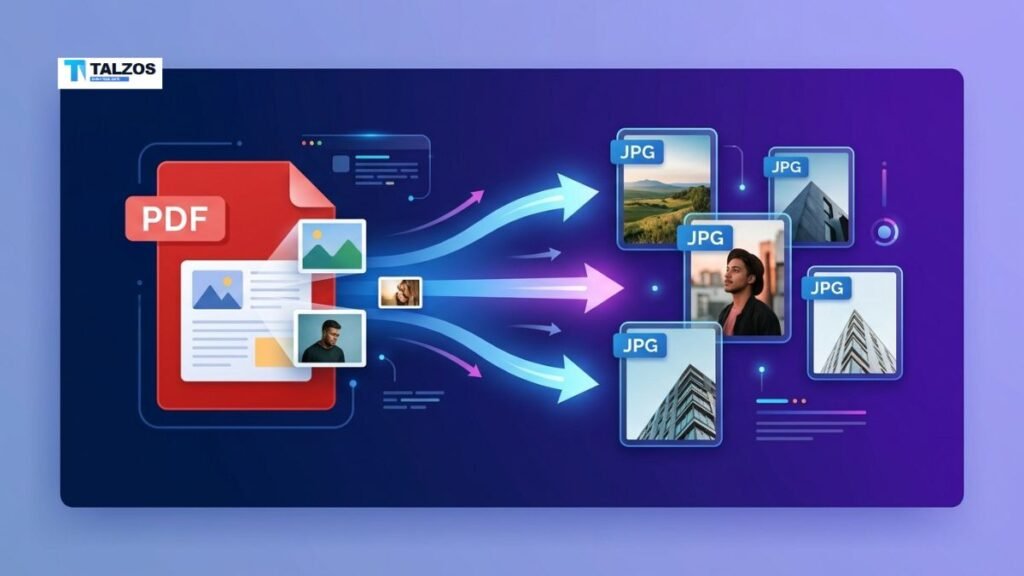
A PDF can contain much more than text. Product photos, scanned documents, diagrams, screenshots, charts, and illustrations are often embedded inside PDF files. When you need to reuse one of these visuals, taking a screenshot may seem like the quickest solution—but it can reduce image quality and capture unwanted parts of the page.
A better approach is to extract the original image or convert the relevant PDF page into a JPG file. Whether you are preparing images for a website, sharing them on social media, creating marketing materials, or archiving scanned documents, learning how to work with PDF to JPG conversions can save time and preserve visual quality.
This guide explains several practical ways to extract images from PDF files, including online converters, desktop software, built-in computer tools, and command-line methods. It also covers the difference between extracting an embedded image and converting an entire PDF page into JPG format.
Why Extract Images From a PDF?
People extract images from PDF files for many different reasons. A designer may need an original logo from a brand guidelines document. A student may want to save a chart from a research paper. A business owner may need to reuse product images from a catalog.
Common reasons include:
- Reusing images in presentations or documents.
- Saving photos from digital brochures and catalogs.
- Converting scanned pages into shareable JPG files.
- Uploading PDF content to websites that do not accept PDF files.
- Creating thumbnails for reports or online listings.
- Preserving visuals from old or archived documents.
- Editing images separately from the original PDF.
Extracting an image is usually better than copying and pasting because it can preserve the image’s original resolution, color, and file format. However, the best method depends on how the PDF was created.
Some PDFs contain individual image files placed on a page. Others are simply scanned pages saved as one large image. In the first case, you can often extract the embedded image directly. In the second, converting the entire page from PDF to JPG is usually the most effective option.
Extracting an Embedded Image vs. Converting a Page
Before choosing a tool, it helps to understand the two main approaches.
Extract an Individual Image
This method removes a specific image from the PDF without saving the surrounding text or page design. It is ideal when you need a photo, logo, illustration, or graphic by itself.
For example, a PDF catalog may contain product images alongside descriptions. Direct extraction can save the product photo without including the catalog layout.
The resulting file may be available as JPG, PNG, TIFF, or another format, depending on the original image and the extraction tool.
Convert a PDF Page to JPG
A PDF to JPG converter creates an image of an entire PDF page. The output includes everything visible on that page, including text, graphics, backgrounds, and images.
This approach works well for:
- Scanned documents.
- Posters and flyers.
- Certificates.
- Full-page infographics.
- Forms and receipts.
- Pages that contain several images.
Page conversion is not the same as extracting an embedded image. It creates a visual snapshot of the page, so the output may not retain the original image’s separate layers or resolution.
How to Extract Images Using an Online Tool
An online PDF to JPG tool is often the easiest option for occasional use. Most browser-based converters work without installing software and can be used on Windows, macOS, Linux, tablets, and smartphones.
Follow these steps:
- Open a reputable online PDF conversion tool.
- Upload the PDF file from your device or cloud storage.
- Choose whether to convert all pages or selected pages.
- Select JPG as the output format.
- Start the conversion.
- Download the resulting JPG files.
- Open the images and check their quality and cropping.
Many tools create one JPG file per PDF page. If the document has ten pages, you may receive ten separate image files, often placed in a ZIP folder.
Advantages of Online Conversion
Online tools are convenient because they:
- Require no installation.
- Work across different operating systems.
- Support quick one-time conversions.
- Often allow batch processing.
- May include compression or resizing options.
Important Privacy Considerations
Avoid uploading confidential, financial, legal, medical, or business-sensitive PDFs to an online service unless you understand how the service handles uploaded files. Check whether files are deleted automatically, whether uploads are encrypted, and whether the provider stores documents for any period.
For sensitive material, an offline desktop application is usually a safer choice.
How to Extract Images with Adobe Acrobat
Adobe Acrobat provides several ways to work with images in PDF files. Depending on the version you use, you may be able to export an entire page as JPG or edit and save individual images.
To convert PDF pages into JPG files:
- Open the PDF in Adobe Acrobat.
- Select the export or convert option.
- Choose Image as the export category.
- Select JPEG or JPG.
- Choose a destination folder.
- Adjust image quality or resolution if those options are available.
- Export the file.
Acrobat generally creates a separate image for each page. If you only need a few pages, select the relevant page range before exporting.
To work with an individual image, open the PDF in an editing view and select the image if the document allows it. You can then copy or export it, depending on the file’s permissions and the Acrobat version.
Acrobat is useful when you regularly manage PDFs or need control over resolution, color settings, and page selection. It may be more than you need for a single conversion, but it offers additional editing and document-management features.
How to Extract Images on Windows
Windows users have several simple options, depending on the type of image they need.
Use a PDF Reader
Some PDF readers allow you to right-click an image and copy it. Open the document, select the image, and look for options such as Copy Image, Save Image, or Export Image.
This method works only when the image is selectable. In scanned PDFs, the entire page may behave like one image, so individual selection may not be possible.
Use the Snipping Tool
Windows includes a built-in Snipping Tool that can capture part of the screen. It is useful for quick, low-stakes tasks.
To use it:
- Open the PDF and zoom in until the image appears at the desired size.
- Open the Snipping Tool.
- Select the rectangular capture mode.
- Drag around the image.
- Save the capture as JPG or PNG.
For better results, maximize the PDF window and use a high zoom level. Still, remember that a screenshot may not match the original image’s quality.
Use a Desktop Converter
A dedicated PDF conversion application can export pages at a selected resolution and process multiple files. This is a practical choice if you often convert PDFs into images or need to work offline.
How to Extract Images on macOS
Mac users can use Preview for basic PDF to JPG conversions.
To convert a PDF page:
- Open the PDF in Preview.
- Select the page you want in the thumbnail panel.
- Choose File, then Export.
- Select JPEG as the format.
- Choose the desired quality and resolution.
- Save the image.
If you need multiple pages, export them individually or use a batch-capable application.
Preview is convenient for page conversion, but it may not extract every embedded image separately. If you need the original image rather than a page snapshot, use a PDF editor or a specialized extraction utility.
How to Extract Images from Scanned PDFs
Scanned PDFs require a slightly different approach. A scanner usually creates one image per page, meaning there may be no separate photo or graphic objects to extract.
The most reliable workflow is:
- Convert the relevant PDF page to JPG.
- Crop the image to remove unnecessary borders.
- Straighten the page if it is tilted.
- Adjust brightness, contrast, or color.
- Apply OCR separately if you also need editable text.
If the scan is blurry, converting it to JPG will not restore missing detail. Start with the highest-quality PDF available, and avoid repeatedly converting the image between formats because each lossy conversion can reduce quality.
For black-and-white documents, PNG or TIFF may sometimes preserve text and line detail better than JPG. JPG is usually more convenient for photos and online sharing, while PNG is often preferable for sharp graphics and transparency.
How to Extract Images from a PDF Using Command-Line Tools
Advanced users may prefer command-line utilities, especially when processing many files. One common approach is to use a PDF image extraction utility that identifies and saves embedded images directly.
A typical workflow looks like this:
- Install a trusted PDF utility package.
- Open a terminal or command prompt.
- Navigate to the folder containing the PDF.
- Run the image-extraction command.
- Review the exported files and convert them if necessary.
Command-line extraction can be faster than manually opening documents one at a time. It is particularly useful for automated workflows, content migration, document archives, and large collections of PDFs.
However, command-line tools may require technical knowledge. Always work from a copy when processing important files, and verify the output before deleting the original document.
How to Choose the Right JPG Quality
When converting PDF to JPG, quality settings affect both appearance and file size.
A higher-quality JPG usually provides:
- Sharper text and graphics.
- Better detail in photographs.
- Fewer visible compression artifacts.
- Larger file sizes.
A lower-quality JPG may be suitable for:
- Email attachments.
- Website thumbnails.
- Quick previews.
- Messaging apps.
- Documents where small file size matters most.
For print materials or detailed diagrams, choose a higher resolution. For websites, balance image clarity with loading speed. If your PDF contains small text, use a higher resolution so the characters remain readable after conversion.
You should also check the image dimensions. A conversion tool may export a page at a default size that is too small for your needs. If the output looks blurry, increase the resolution or use a direct image-extraction method instead of a screenshot.
Common Problems and Their Solutions
The Image Looks Blurry
This usually happens when the PDF is low resolution, the conversion setting is too low, or the image was captured as a screenshot. Try exporting at a higher resolution or extracting the original embedded file.
The File Has a White Background
Some PDF images use transparency. JPG does not support transparent backgrounds, so transparent areas may appear white. Use PNG if you need to preserve transparency.
The Text Is Unreadable
Increase the export resolution, choose a higher quality setting, or use the original PDF page instead of a small screenshot. Avoid enlarging a low-resolution JPG because it cannot recreate detail that was never captured.
The Tool Saves Every Page
Most PDF to JPG converters export the entire document by default. Look for a page-range option and specify only the pages you need.
The PDF Is Password Protected
A protected PDF may prevent copying or conversion. If you own the document or have permission, obtain the password or ask the creator for an unrestricted copy. Do not attempt to bypass access controls without authorization.
Best Practices for PDF to JPG Conversion
Use these tips to get cleaner and more reliable results:
- Keep a backup of the original PDF.
- Use direct extraction when you need a single embedded image.
- Use page conversion for scans, posters, forms, and full-page designs.
- Export at a suitable resolution rather than relying on screenshots.
- Choose PNG for transparency and sharp line art.
- Choose JPG for photographs and compact web-friendly files.
- Review the final image before sharing or publishing it.
- Crop unwanted borders after conversion.
- Avoid repeated JPG conversions.
- Use offline software for confidential documents.
- Confirm that you have permission to reuse copyrighted images.
Final Thoughts
Extracting images from a PDF does not have to be complicated. For a fast one-time task, an online PDF to JPG converter may be enough. Windows and macOS users can also rely on built-in tools for basic page conversion, while professional PDF software provides greater control over output quality and page selection.
The most important decision is whether you need an individual embedded image or a JPG version of an entire PDF page. Once you understand that difference, you can choose the right method, maintain better image quality, and avoid unnecessary editing.
When possible, use the original image rather than a screenshot, select an appropriate resolution, and consider privacy before uploading documents online. With these practices, converting PDF to JPG becomes a quick and dependable part of your document workflow.