Sharing documents online is routine, but not every file should be open to anyone. If you handle contracts, invoices, tax forms, or client data, you need a reliable way to protect PDF files before they leave your device. This guide walks you through simple, secure methods to password-protect PDFs using trusted tools—plus best practices to keep your documents safe without slowing down your workflow.
Why You Should Protect PDF Files Before Sharing
PDFs are portable, but that portability comes with risk. Once a file is emailed or uploaded, you lose control over who opens, edits, or prints it. Password protection adds a critical layer of security by encrypting the file so only authorized users can access it.
You should protect PDF files when:
- Sending financial records, invoices, or tax documents to clients or accountants.
- Sharing HR materials like offer letters, NDAs, or performance reviews.
- Distributing proprietary reports, whitepapers, or internal policies.
- Uploading resumes, portfolios, or case studies to job boards or client portals.
Without encryption, sensitive data can be intercepted, copied, or misused—especially on public Wi-Fi or shared drives. A strong password turns your PDF into a locked vault that only the right key can open.
Method 1: Password-Protect PDF with Adobe Acrobat (Desktop)
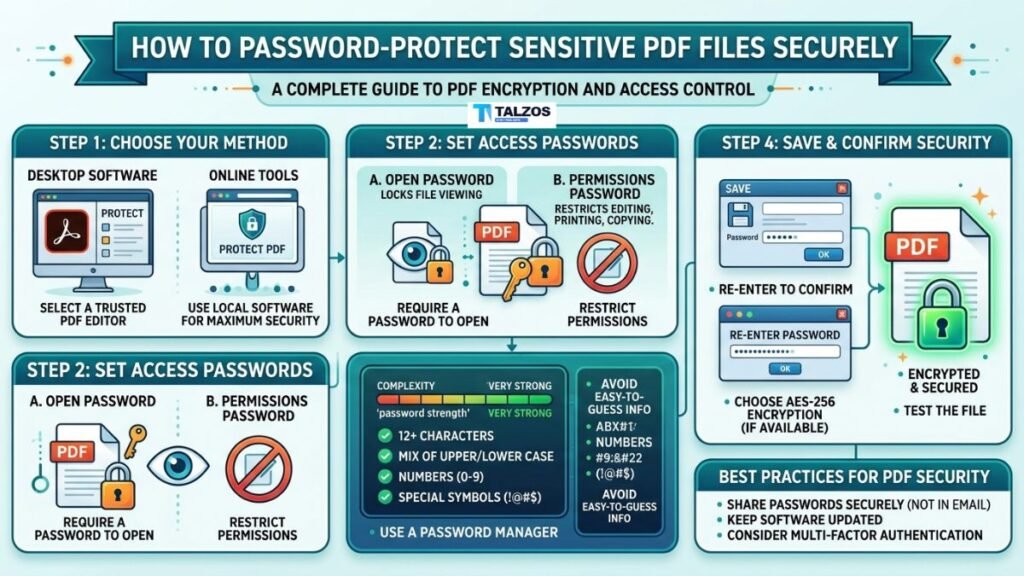
Adobe Acrobat remains the gold standard for PDF security. If you have Acrobat Pro or Standard DC (Windows or Mac), follow these steps to protect PDF files with an open password and optional editing restrictions.
Step-by-Step: Add an Open Password
- Open your PDF in Adobe Acrobat.
- Go to All tools > Protect (or Tools > Protect > Protect Using Password).
- Click Protect with password.
- In the dialog, choose Viewing to require a password just to open the file.
- Type and confirm a strong password (12+ characters, mix of letters, numbers, symbols).
- Click Apply, then Save the file.
Optional: Restrict Editing, Printing, or Copying
For extra control, set a second “permissions” password:
- In the same Protect with password panel, select Advanced Options > Encrypt with Password.
- Check Restrict editing and printing of the document.
- Enter a permissions password (different from the open password).
- Choose allowed actions: printing resolution, form filling, commenting, copying, etc.
- Set compatibility to Acrobat 5.0 and later (AES-128 encryption).
- Click OK, confirm passwords, and save.
This two-password approach lets recipients view the file freely but prevents changes unless they have the permissions key. Ideal for contracts or templates you want to stay unaltered.
Method 2: Use Free Online Tools to Protect PDF Files
Not everyone has Acrobat. Fortunately, several reputable online services let you protect PDF files for free with browser-based encryption. These are perfect for quick tasks, freelancers, or small teams.
Smallpdf Protect PDF
- Visit smallpdf.com/protect-pdf.
- Drag and drop your file or click Choose file.
- Enter and confirm your password.
- Click Encrypt PDF, then download the locked file.
Smallpdf uses 256-bit SSL for uploads and deletes files from servers after one hour. For highly sensitive documents, consider desktop tools or self-hosted options.
iLovePDF and PDF24
- iLovePDF: Upload, set password, choose encryption level (128-bit or 256-bit), download.
- PDF24 Tools: Free, no registration, supports batch protection and permission settings.
Always verify the tool’s privacy policy. Avoid uploading confidential client data to unknown sites. When in doubt, use offline software like PDFEncrypt (free, open-source for Windows) to protect PDF files locally.
Method 3: Mobile Apps to Protect PDF on iOS and Android
Need to secure a file on the go? Mobile apps make it easy to protect PDF files directly from your phone or tablet.
Adobe Acrobat Reader (iOS/Android)
- Open the app and load your PDF.
- Tap the three-dot menu > Protect or Lock.
- Set a password and confirm.
- Save or share the encrypted file.
Microsoft Lens + OneDrive (Workaround)
While Lens doesn’t add passwords directly, you can:
- Scan or open a PDF in Lens.
- Save to OneDrive.
- In OneDrive, right-click the file > Share > Set password (Microsoft 365 feature).
- Share the link with password protection enabled.
For native mobile encryption, stick with Acrobat or dedicated apps like PDF Expert (iOS) or Xodo (Android), which support password settings.
How to Choose a Strong Password for Your PDF
A weak password defeats the purpose of encryption. Follow these rules to create unbreakable keys:
- Length: At least 12 characters; 16+ for high-value documents.
- Complexity: Mix uppercase, lowercase, numbers, and symbols (!, @, #, $).
- Uniqueness: Never reuse passwords from email, banking, or social accounts.
- Memorability: Use a passphrase like “BlueCoffee$Mug2026!” instead of “P@ssw0rd123”.
- Storage: Save passwords in a trusted manager (Bitwarden, 1Password, or KeePass).
Avoid writing passwords on sticky notes or saving them in unencrypted text files. If you share the PDF, send the password via a different channel (e.g., SMS or encrypted messaging app).
Common Mistakes to Avoid When You Protect PDF Files
Even with the right tools, small errors can leave your documents exposed. Watch out for these pitfalls:
- Using “123456” or “password”: These are cracked in seconds. Always use strong, random strings.
- Forgetting to save after setting passwords: Changes apply only after you click Save or Apply.
- Sharing the password in the same email: If the email is compromised, both file and key are exposed. Use separate channels.
- Relying solely on online tools for confidential data: Some services retain files temporarily. For legal, medical, or financial docs, prefer desktop encryption.
- Not testing the protected file: Always open the saved PDF to confirm the password works before sending.
Advanced Tip: Batch-Protect Multiple PDFs at Once
If you regularly send batches of invoices, reports, or client packets, automate the process:
- Adobe Acrobat Action Wizard: Create a custom action to apply the same password to multiple files. Go to Tools > Action Wizard > Create New Action, add Protect steps, and run on a folder.
- PDF24 Creator (Windows): Free desktop app with batch encryption. Load files, set one password, export all at once.
- Command-Line Tools (for tech users): Use
qpdforpdftkwith scripts to loop through directories and apply passwords programmatically.
Batch protection saves time and ensures consistency—no more forgetting to lock one file in a set of ten.
What Happens If You Forget the Password?
Unlike cloud accounts, PDF passwords cannot be reset by a “forgot password” link. If you lose the key:
- No recovery: Without the password, the file is permanently inaccessible. Encryption is designed to be unbreakable.
- Prevention: Store passwords in a secure manager. Keep a backup of unprotected originals in an encrypted drive or vault.
- Third-party “unlock” services: Most are scams or violate terms of service. Avoid them for legitimate documents.
Treat PDF passwords like house keys—lose them, and you’re locked out for good.
Legal and Compliance Considerations
In regulated industries (healthcare, finance, legal), password-protecting PDFs may be part of compliance:
- HIPAA: Protecting patient records in transit often requires encryption. A password-protected PDF meets basic safeguards when combined with secure transmission.
- GDPR: Personal data shared via email should be encrypted. Password protection adds a layer of “appropriate technical measures.”
- Client Contracts: Many NDAs specify that sensitive files must be encrypted before sharing. Failing to protect PDF files could breach agreements.
Always check your industry’s guidelines. When in doubt, consult your legal or compliance team before sending unprotected documents.
Final Checklist: Before You Send a Protected PDF
Run through this quick list to ensure maximum security:
- [ ] Used a strong, unique password (12+ characters, mixed types).
- [ ] Saved the file after applying protection.
- [ ] Tested the PDF by reopening it with the password.
- [ ] Sent the password via a different channel (not the same email).
- [ ] Verified the recipient’s ability to open password-protected files (some older readers may struggle).
- [ ] Kept a backup of the original in a secure location.
With these steps, you can share documents confidently, knowing only intended recipients can access them.