Professionals drown in PDFs daily—contracts, reports, invoices, research papers, and compliance documents. Without a solid system, important files vanish into digital clutter, wasting time and creating risk. Effective PDF management isn’t just about storage; it’s about creating a workflow that makes documents easy to find, secure, and actionable.
This guide walks you through practical, human-centered PDF management strategies that busy professionals can implement immediately. From folder structures to automation, security to collaboration, you’ll learn how to transform PDF chaos into a streamlined system that saves hours every week.
Why PDF Management Matters for Professionals
PDFs are the universal language of business documents. They preserve formatting, work across devices, and are legally recognized for contracts and official records. But that ubiquity creates a problem: most professionals accumulate hundreds or thousands of PDFs with no coherent system.
Poor PDF management leads to duplicated files, outdated versions circulating internally, missed deadlines, and security vulnerabilities. A well-designed PDF management system ensures you always know where documents live, which version is current, who has access, and how to retrieve them instantly.
Build a Simple, Scalable Folder Structure
The foundation of good PDF management is a clear folder hierarchy. Complexity is your enemy—aim for three to four levels maximum so navigation stays intuitive as your library grows.
A proven structure looks like this:
- Level 1: Year (2026, 2025, 2024)
- Level 2: Category (Contracts, Finance, Reports, HR, Projects)
- Level 3: Specifics (2026/Contracts/AcmeCorp or 2026/Reports/Q1_Analysis)
Some teams add a fourth level for sub-projects or clients, but resist going deeper. If you need more granularity, use file naming and metadata instead.
Create dedicated workflow folders to manage documents in progress:
/PDFs/Incoming— new files awaiting processing/PDFs/Processing— being reviewed, edited, or annotated/PDFs/Archive— finalized, stored documents
Process your Incoming folder daily or weekly. Rename files using your convention, then move them to their permanent location. This prevents the Downloads folder from becoming a black hole.
Master File Naming Conventions
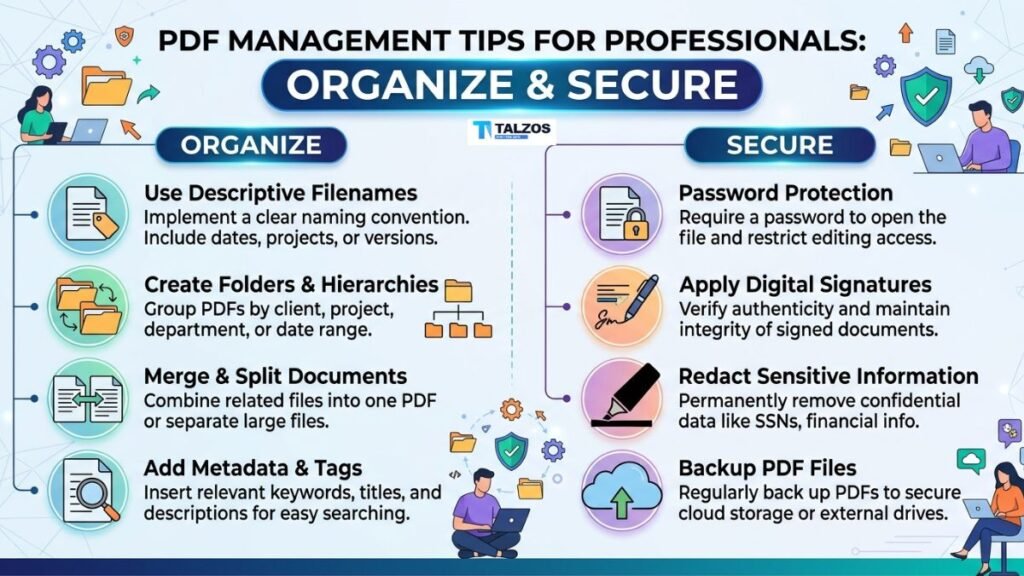
Consistent file names make PDFs searchable and self-explanatory. A strong naming pattern includes date, context, and document type in that order.
Use this format: YYYY-MM-DD_DocumentType_ClientOrProject.pdf
Examples:
2026-09-02_Contract_AcmeCorp.pdf2026-08-15_Invoice_TechVendor.pdf2026-07-20_Report_Q2_Finance.pdf
Why this works:
- Date first ensures chronological sorting in any file explorer
- Client or project second provides immediate context
- Document type third clarifies purpose at a glance
Avoid vague names like final.pdf, document1.pdf, or revised_version.pdf. These create confusion and waste time during searches.
Implement keyword strategies so every PDF is findable through at least three search terms: client name, project code, and document category. This redundancy ensures you can locate files even if you only remember partial information.
Version Control Without the Headache
Version confusion is a top cause of document errors. Multiple people editing different copies leads to conflicting information, missed updates, and embarrassing mistakes in client-facing materials.
Follow these rules:
- Store one definitive version in a shared location (cloud drive, document management system)
- Share links, not attachments whenever possible
- Update the document in one place rather than resending files
Use clear version indicators in file names when multiple iterations exist:
2026-09-02_Contract_AcmeCorp_v1.pdf2026-09-02_Contract_AcmeCorp_v2_FINAL.pdf2026-09-02_Contract_AcmeCorp_v3_SIGNED.pdf
Some teams add initials for the last editor: v2_FINAL_jl.pdf. Choose a convention and stick to it across your organization.
For collaborative editing, use platforms with built-in version history (Google Drive, SharePoint, Dropbox Business). These systems automatically track changes and allow you to revert to previous versions if needed.
Secure Your PDF Storage
Security isn’t optional for professional PDF management. Contracts, financial records, HR documents, and client information all require protection from unauthorized access and data breaches.
Essential security practices:
- Use encrypted cloud storage with two-factor authentication
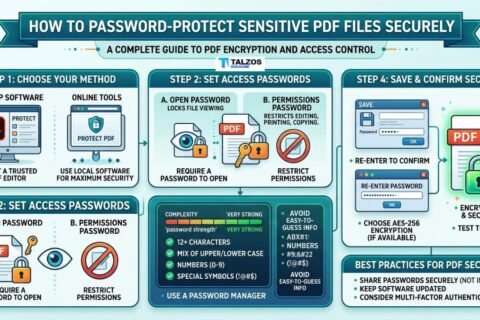
- Apply password protection to PDFs containing sensitive data
- Set access permissions based on roles (view-only, edit, approve)
- Enable audit trails to track who accessed or modified documents
For highly sensitive documents, apply AES-256 bit encryption. This military-grade security protects financial records, personal identifiers, and confidential business information.
Implement retention policies aligned with legal and regulatory requirements. Conduct annual audits to identify documents past their required retention period, verify they’re not under legal hold, and delete or archive them appropriately. Document each audit to maintain a defensible trail.
Optimize PDFs for Performance and Usability
Large PDF files slow down workflows, clog email inboxes, and frustrate collaborators. Optimization balances file size with quality based on the document’s purpose.
Follow this compression strategy:
- Working copies: Keep uncompressed for editing, reviewing, and marking up
- Distribution copies: Compress based on use case
- Email attachments: “balanced” compression
- Web posting: “screen-quality” compression
- Print materials: “high-quality” compression
- Archival copies: Store both the compressed distribution version and the original uncompressed source
Use built-in compression tools in Adobe Acrobat, or free online tools that process files locally without uploading to servers. Many PDF editors offer batch compression to process multiple files simultaneously.
For large PDFs (100+ pages), split them into logical sections with clear bookmarks. This improves navigation and allows team members to access only the sections they need.
Automate Repetitive PDF Tasks
Automation transforms PDF management from a chore into a seamless background process. Identify repetitive tasks in your workflow and automate them to save hours weekly.
Common automation opportunities:
- Auto-rename incoming PDFs based on metadata or content
- Route documents to appropriate folders or team members
- Convert file formats automatically (Word to PDF, scans to searchable PDFs)
- Extract data from invoices, forms, or contracts into spreadsheets
- Send reminders for documents pending review or signature
Start by mapping your current PDF processes. Identify bottlenecks where documents sit waiting, manual steps that could be automated, and departments with unique handling requirements. Then pilot automation tools with real team input before rolling out organization-wide.
Bookmark your most-used PDF tools in a browser folder called “PDF Tools.” Include your compression tool, editor, merge/split utility, OCR service, and eSignature platform. This small habit eliminates time wasted searching for the right tool.
Choose the Right PDF Management Tools
Your PDF management system is only as good as the tools supporting it. Professionals need a stack that handles creation, editing, security, collaboration, and automation.
Essential tool categories:
- PDF editors: Adobe Acrobat Pro, Foxit, PDF-XChange for comprehensive editing
- Cloud storage: Google Drive, Dropbox, OneDrive, SharePoint for secure, shared access
- Document management systems: M-Files, DocuWare, or custom solutions for enterprise workflows
- E-signature platforms: DocuSign, Adobe Sign, HelloSign for legally binding signatures
- OCR tools: Convert scanned documents into searchable, editable PDFs
- Automation platforms: Zapier, Make, or PDF SDK integrations for workflow automation
Evaluate tools based on your organization’s needs, existing tech stack, security requirements, and budget. Pilot potential solutions with actual team members before committing.
For IT teams handling large volumes, look for solutions offering batch processing, API integrations, and scalable security features.
Standardize Your PDF Production Workflow
Consistency in how PDFs are created prevents downstream problems. Teams that produce PDFs frequently should agree on canonical standards for each document type.
Establish these standards:
- Source format: Word, Google Docs, LaTeX, or InDesign (pick one per document type)
- Export settings: PDF/A for archival, PDF/X for print, standard PDF for distribution
- Paper size: A4 or US Letter based on your region and audience
- Fonts: Always embed fonts; never use font references that may break on other systems
Treat PDF output as a build artifact—produced from a master file, distributed widely, but never edited directly. When changes are needed, update the source file and regenerate the PDF. This maintains integrity and prevents version drift.
Implement a PDF Intake and Review Process
Not all PDFs deserve permanent storage. Implement an intake process to filter, process, and archive only what matters.
Create a simple workflow:
- Capture: All new PDFs go to your
/Incomingfolder - Review: Process this folder daily or weekly
- Rename: Apply your naming convention
- Categorize: Move to the appropriate permanent folder
- Archive: Finalize and store
Schedule weekly maintenance time to keep your system clean. This prevents backlog buildup and ensures your PDF library remains navigable.
For older files, take a phased approach:
- Implement automation for all new PDFs immediately
- Organize recent files (last 6 months) manually
- Archive old chaos in clearly labeled “PRE-SYSTEM” folders
- Clean up legacy files gradually as you need them
This prevents the overwhelming task of reorganizing years of accumulated PDFs all at once.
Enable Collaboration Without Confusion
PDFs often require input from multiple stakeholders. Enable collaboration while maintaining control over versions and access.
Best practices:
- Use comment and annotation features for review cycles instead of editing the original
- Set clear approval workflows showing who must review and sign off
- Track changes with audit logs showing who accessed what and when
- Lock final versions to prevent accidental modifications
For contract reviews, add comments and annotations directly in the PDF rather than sending separate emails with feedback. This keeps all context in one place and creates a clear review trail.
Integrate eSignature tools to streamline approval processes. Digital signatures are legally binding and create automatic audit trails showing who signed, when, and from where.
Maintain and Audit Your PDF System
A PDF management system degrades without maintenance. Schedule regular audits to ensure your system remains effective and compliant.
Quarterly maintenance checklist:
- Review folder structures for bloat or inconsistency
- Check for duplicate files and consolidate
- Verify access permissions are still appropriate
- Test search functionality to ensure documents are findable
- Update naming conventions if business needs have changed
Annual retention audit:
- Identify documents past their required retention period
- Verify they’re not under legal hold (litigation, regulatory inquiry)
- Delete or archive to cold storage as appropriate
- Document the audit for compliance purposes
Track key performance indicators like time spent searching for documents, number of version conflicts, and storage costs. Use this data to refine workflows and justify tool investments.
Final Thoughts: Start Small, Think Long-Term
Effective PDF management doesn’t require perfection on day one. Start with one improvement—perhaps implementing a naming convention or creating your folder structure. Build momentum with small wins, then layer in automation and security as your system matures.
The goal isn’t a flawless system; it’s a functional one that saves time, reduces stress, and keeps important documents secure and accessible. Invest in PDF management now, and you’ll reap dividends in productivity and peace of mind for years to come.
Remember: the best PDF management system is the one you actually use. Keep it simple, make it habitual, and adjust based on real-world feedback from your team. Your future self will thank you every time you find the right document in seconds instead of searching for hours.