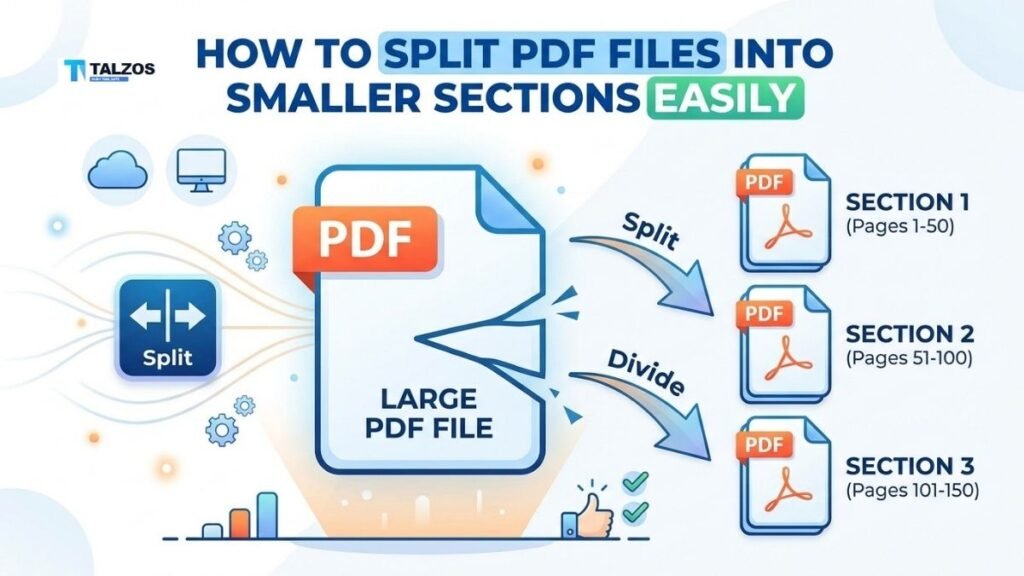
Splitting a large PDF into smaller, manageable sections is one of the most useful skills for students, professionals, and anyone who regularly handles digital documents. Whether you need to email a report, share specific chapters with colleagues, or upload sections to a portal with file size limits, knowing how to split PDF files efficiently can save you time and frustration. In this guide, we’ll walk through everything you need to know about splitting PDFs—why it matters, the best tools to use, and step-by-step methods that work on any device.
Why You Might Need to Split PDF Files
Large PDF files can be cumbersome to work with. They take longer to load, are harder to navigate, and often exceed email attachment limits (which typically cap out around 20–25 MB). Splitting a PDF allows you to:
- Share only the relevant sections with specific recipients instead of sending an entire document.
- Upload chapters or sections individually to learning management systems, job portals, or government websites that enforce strict file size restrictions.
- Improve readability by breaking a 300-page manual into digestible parts.
- Organize scanned documents, such as separating invoices, contracts, or forms from a single batch scan.
In short, splitting PDFs isn’t just about reducing file size—it’s about making your documents more functional and accessible.
Methods to Split PDF Files
There are several ways to split PDF files, depending on your needs, technical comfort level, and the tools you have available. Below are the most common and effective methods.
Using Adobe Acrobat (Desktop Software)
Adobe Acrobat remains the gold standard for PDF manipulation, and its “Organize Pages” tool makes splitting PDFs straightforward.
Steps to split a PDF in Adobe Acrobat:
- Open your PDF in Adobe Acrobat.
- Click on Organize Pages in the right-hand toolbar.
- Select Split from the top menu.
- Choose how you want to split the document:
- Number of pages: Divide the PDF into chunks of a specific page count (e.g., every 10 pages).
- File size: Split based on maximum file size (useful for email attachments).
- Top-level bookmarks: Automatically split at chapter or section markers if your PDF includes bookmarks.
- Set your output options, including the destination folder and naming convention for the new files.
- Click Split, and Acrobat will generate the smaller PDFs in your chosen folder.
This method is ideal for users who already have Acrobat and need precise control over how their documents are divided.
Free Online PDF Splitters (No Installation Required)
If you don’t have Adobe Acrobat or prefer not to install software, numerous free online tools let you split PDFs directly in your browser. Most of these tools process files locally (using WebAssembly), meaning your document never leaves your device—ensuring privacy and speed.
Popular free online PDF splitters include:
- PDFWix: Allows splitting by page range or extracting individual pages. No signup or watermark.
- iFillPDF: Offers multiple split modes, including custom ranges, AI chapter detection, and file size limits.
- SlidesCarnival Split PDF: A simple, no-signup tool that runs entirely in your browser.
- DocumentEsign: Lets you type page ranges (e.g., 1–3, 5, 8–10) or split every page into its own file.
- ToolsMonk: Provides visual page thumbnails and supports splitting by equal parts, every N pages, or file size.
General steps for using online splitters:
- Visit the tool’s website (e.g., PDFWix, iFillPDF).
- Upload your PDF by dragging it into the upload area or clicking to browse.
- Choose your split method:
- Enter specific page ranges (e.g., 1–10, 15–25).
- Split every N pages (e.g., every 20 pages).
- Use AI to auto-detect chapters (available in some tools).
- Click Split and download the resulting files—usually as a ZIP archive containing all the smaller PDFs.
These tools are perfect for quick, one-off tasks and work on Windows, Mac, Linux, and even mobile devices.
Built-in Options on Mac and Windows
Both macOS and Windows offer native ways to split PDFs without third-party software, though they’re more manual.
On macOS (using Preview):
- Open the PDF in Preview.
- Go to File > Print.
- In the print dialog, set the page range you want to extract (e.g., pages 1–10).
- Click the PDF dropdown in the bottom-left corner and select Save as PDF.
- Repeat for other sections.
On Windows (using Print to PDF):
- Open the PDF in any viewer (e.g., Chrome, Edge, or Adobe Reader).
- Press Ctrl + P to open the print dialog.
- Choose Microsoft Print to PDF as the printer.
- Set the page range (e.g., 1–15) and click Print.
- Save the new, smaller PDF.
- Repeat for other sections.
While these methods work, they’re time-consuming for large documents with many sections.
Specialized PDF Software (Alternative to Acrobat)
If you frequently work with PDFs but don’t want to pay for Adobe Acrobat, consider dedicated PDF tools like:
- PDF Studio (Windows): Offers a “Split into multiple PDF files” option directly from the file’s context menu in Windows Explorer.
- Lumin PDF: A browser-based editor with a “Split & Extract” feature under Page Tools.
- AssistMyTeam PDF Tools: Provides batch splitting and advanced organization features.
These tools often include additional features like merging, compressing, and annotating PDFs, making them versatile for power users.
Best Practices When Splitting PDFs
To get the most out of your split PDFs, follow these tips:
- Plan your sections first: Decide whether you’re splitting by chapters, page ranges, or file size before you start. This prevents unnecessary rework.
- Use clear naming conventions: Name your files descriptively (e.g., “Report_Chapter1_Intro.pdf” instead of “split_001.pdf”) to avoid confusion later.
- Preserve bookmarks: If your original PDF has bookmarks, choose a splitting method that retains them (some online tools and Acrobat support this).
- Check file sizes: If you’re splitting for email, verify that each new file is under your recipient’s attachment limit (usually 20–25 MB).
- Keep the original: Always retain a copy of the full PDF in case you need to re-split or reference the complete document.
Common Use Cases for Splitting PDFs
Understanding when and why to split PDFs can help you apply these techniques more effectively. Here are some real-world scenarios:
- Students: Breaking a textbook or lecture notes into weekly readings for easier study sessions.
- Professionals: Sending specific sections of a proposal or contract to different stakeholders without sharing the entire document.
- Job applicants: Uploading individual documents (resume, cover letter, portfolio) to application portals that accept only one file per upload.
- Legal and administrative work: Separating scanned batches of forms, invoices, or case files into individual records.
- Authors and publishers: Dividing a manuscript into chapters for review or distribution.
Troubleshooting Tips
Even with the right tools, you might run into issues. Here’s how to handle common problems:
- File won’t upload: Check your internet connection and ensure the file isn’t corrupted. Try a different browser or tool if one fails.
- Split files are too large: Use the “file size” split option (available in Acrobat and some online tools) to enforce a maximum size per file.
- Missing pages or sections: Double-check your page ranges before splitting. Some tools use 1-based indexing (page 1 is the first page), while others might differ.
- Bookmarks disappear: Not all tools preserve bookmarks. If this is critical, use Adobe Acrobat or a tool that explicitly supports bookmark retention.
Final Thoughts
Splitting large PDF files into smaller sections doesn’t have to be complicated. With the right approach and tools, you can quickly break down oversized documents into manageable parts for sharing, organizing, or archiving. Whether you prefer the precision of Adobe Acrobat, the convenience of free online splitters, or the simplicity of built-in OS features, there’s a method that fits your workflow.
The key is to choose a tool that aligns with your needs—whether that’s speed, privacy, advanced features, or cost—and to plan your splits thoughtfully to avoid rework. Once you master these techniques, you’ll find that handling large PDFs becomes far less daunting and far more efficient.