In today’s fast-moving business world, sending a professional PDF invoice isn’t just about looking good—it’s about getting paid faster and keeping your data safe. Whether you’re a freelancer, small business owner, or part of a growing team, knowing how to generate PDF invoices quickly and securely can save you hours and protect your bottom line.
This guide walks you through everything you need: from choosing the right tools and templates to locking down your documents with smart security practices. By the end, you’ll be creating clean, compliant, and client-ready PDF invoices in minutes—not hours.
Why PDF Invoices Are the Gold Standard
Before diving into the “how,” it’s worth understanding why PDF remains the go-to format for invoicing.
- Universal compatibility: PDFs open on any device—phone, tablet, or desktop—without formatting glitches.
- Professional appearance: A well-designed PDF invoice builds trust and reinforces your brand.
- Print-ready and archival: PDFs preserve layout, fonts, and images exactly as intended, making them ideal for printing or long-term storage.
- Security-friendly: Unlike editable formats like Word, PDFs can be encrypted, password-protected, and watermarked to deter tampering.
In short, a PDF invoice isn’t just a bill—it’s a secure, professional communication tool that helps you get paid reliably.
Step-by-Step: How to Generate PDF Invoices Quickly
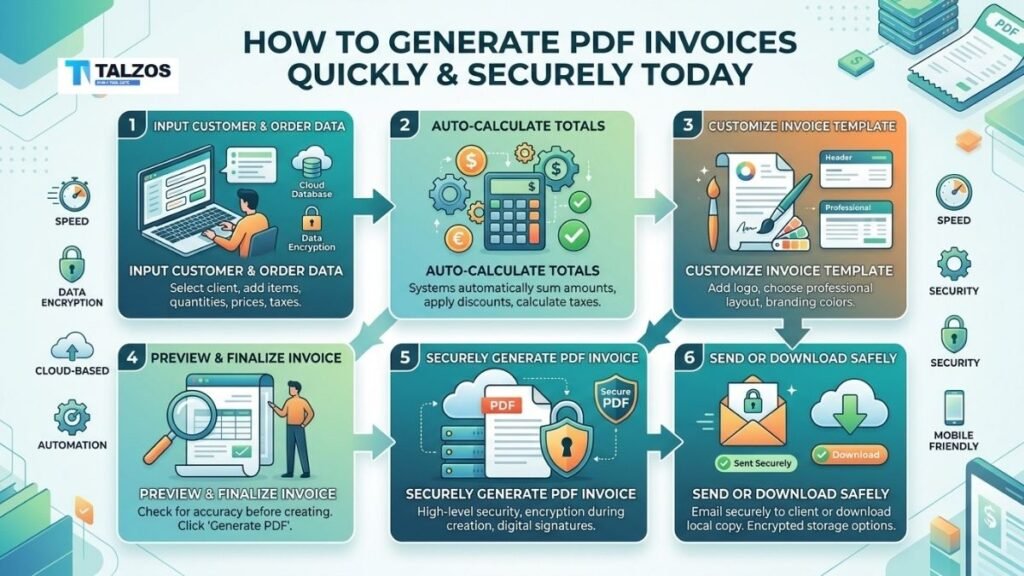
Generating a PDF invoice doesn’t have to be complicated. Here’s a streamlined, human-friendly workflow that works whether you’re sending one invoice or hundreds.
1. Choose the Right Tool for Your Needs
Your first decision: Will you use a free online generator, a desktop app, or an API-driven solution?
- For one-off invoices: Free browser-based tools like invoice-generator.com, PixelTools, or EasyInvoicePDF let you create and download a PDF in under 60 seconds—no signup required.
- For recurring billing: Platforms like QuickBooks, Zoho Invoice, or Wave offer templates, auto-numbering, and client portals.
- For developers or high volume: APIs like DocRaptor, PDFMonkey, or PrefillPDF let you automate invoice generation from your own app or workflow tools like Zapier.
Pick based on your volume, technical comfort, and whether you need automation or just simplicity.
2. Gather Your Invoice Essentials
Before you start typing, collect these key details:
- Your business name, logo, address, and contact info
- Client’s name and billing address
- Unique invoice number (always sequential for compliance)
- Invoice date and payment due date
- Line items: description, quantity, unit price
- Tax rate (VAT, GST, sales tax) and any discounts or shipping fees
- Payment terms and preferred methods (bank transfer, PayPal, etc.)
Having this ready speeds up the process and reduces errors.
3. Select a Clean, Branded Template
Most tools offer pre-designed templates. Choose one that:
- Matches your brand colors and fonts
- Clearly separates sections (header, line items, totals, footer)
- Includes space for your logo and legal notes
A clutter-free layout improves readability and professionalism.
4. Fill in the Details and Auto-Calculate Totals
Enter your data into the template. Good tools will:
- Auto-calculate subtotals, taxes, and grand totals
- Validate dates and invoice numbers
- Allow you to save client profiles for reuse
Double-check math and spelling—small errors can delay payments.
5. Preview and Download as PDF
Always preview before downloading. Look for:
- Correct alignment and spacing
- Visible logo and branding
- Accurate totals and tax calculations
Then click “Download” or “Export” to generate your PDF invoice. Most tools create a selectable-text PDF (not just an image), which is better for accessibility and searchability.
6. Send Securely and Track Delivery
Email your PDF invoice directly or share via a secure link. Avoid public file-sharing services unless they’re password-protected. Some tools even let you track when the invoice is opened—a handy feature for follow-ups.
How to Keep Your PDF Invoices Secure
Speed matters, but security matters more. A leaked or altered invoice can lead to fraud, disputes, or compliance issues. Here’s how to lock things down.
Use Browser-Based Generators for Privacy
If you’re handling sensitive client data, choose tools that process everything locally in your browser—nothing gets uploaded to a server. Tools like PixelTools and EasyInvoicePDF explicitly state they don’t store your data.
Encrypt Sensitive Invoices
For high-value or confidential invoices, consider password protection:
- Use AES-256 encryption (the current gold standard)
- Generate unique passwords per client or invoice
- Share the password via a different channel (e.g., SMS or secure messaging app)—never in the same email as the PDF
Some advanced tools and libraries (like pdf-lib combined with qpdf) support this, though it may require technical setup.
Add Dynamic Watermarks
Watermarks deter unauthorized sharing. Include traceable info like:
- Client email or account ID
- Timestamp of generation
- “Confidential” or “Draft” labels if applicable
This makes leaks easier to track and discourages forwarding.
Control Access with Signed URLs
If you’re hosting invoices online (e.g., in a client portal), use short-lived, signed URLs that expire after a few minutes. This prevents links from being shared indefinitely.
Never Reuse Global Passwords
If you must password-protect multiple invoices, never use the same password for all. Derive unique passwords per document using a secure method (e.g., HMAC with a secret key).
Best Practices for Compliance and Professionalism
Beyond speed and security, your PDF invoices should also be compliant and polished.
Follow Legal Requirements
Depending on your country, invoices may need:
- Sequential numbering
- Tax ID or VAT number
- Clear breakdown of taxes
- Specific wording or fields (e.g., “Tax Invoice” in some jurisdictions)
Tools like Invopop or regional generators handle local e-invoicing mandates automatically.
Keep Records Organized
Save copies of every invoice you send. Good practices include:
- Naming files consistently (e.g.,
Invoice_2026_001_ClientName.pdf) - Storing in a dedicated folder or cloud drive
- Backing up regularly
This simplifies accounting, audits, and dispute resolution.
Automate Where Possible
If you send invoices regularly, automation saves time and reduces errors:
- Set up recurring invoices for retainer clients
- Use Zapier or Make to trigger PDF generation from form submissions or CRM updates
- Integrate with accounting software for real-time financial tracking
Common Mistakes to Avoid
Even experienced professionals slip up. Watch out for these pitfalls:
- Skipping invoice numbers: Always use sequential, unique numbers. It’s often legally required and helps with tracking.
- Forgetting due dates: Clear payment deadlines reduce late payments.
- Ignoring mobile readability: Test your PDF on a phone—many clients open invoices on the go.
- Using editable formats: Never send Word or Excel files as final invoices—they’re too easy to alter. Stick to PDF.
- Overlooking branding: A plain, unbranded invoice looks amateurish. Add your logo and colors.
Tools Worth Checking Out in 2026
The landscape is rich with options. Here are a few standouts based on recent reviews:
- Belvak: Rated best free PDF invoice generator overall—clean, fast, no signup.
- EasyInvoicePDF: Open-source, real-time preview, saves profiles, flexible tax support.
- PixelTools: Browser-based, no data stored, instant selectable-text PDF.
- DocRaptor: Premium HTML-to-PDF for high-fidelity, styled invoices (great for developers).
- QuickBooks: Best for businesses needing invoicing plus full accounting integration.
Most offer free tiers or trials—test a few to see what fits your workflow.
Final Thoughts: Speed, Security, and Simplicity Win
Generating a PDF invoice shouldn’t feel like a chore. With the right tools and habits, you can create professional, secure, and compliant invoices in minutes—whether you’re billing one client or a hundred.
Remember:
- Choose a tool that matches your needs (simple generator vs. full automation)
- Keep your data private and your documents encrypted when necessary
- Follow legal and branding best practices to build trust and avoid headaches
Master this process, and you’ll not only get paid faster—you’ll project a level of professionalism that keeps clients coming back.
Ready to streamline your invoicing? Start with a free, browser-based PDF invoice generator today, and upgrade to automation as your business grows. Your future self (and your accountant) will thank you.