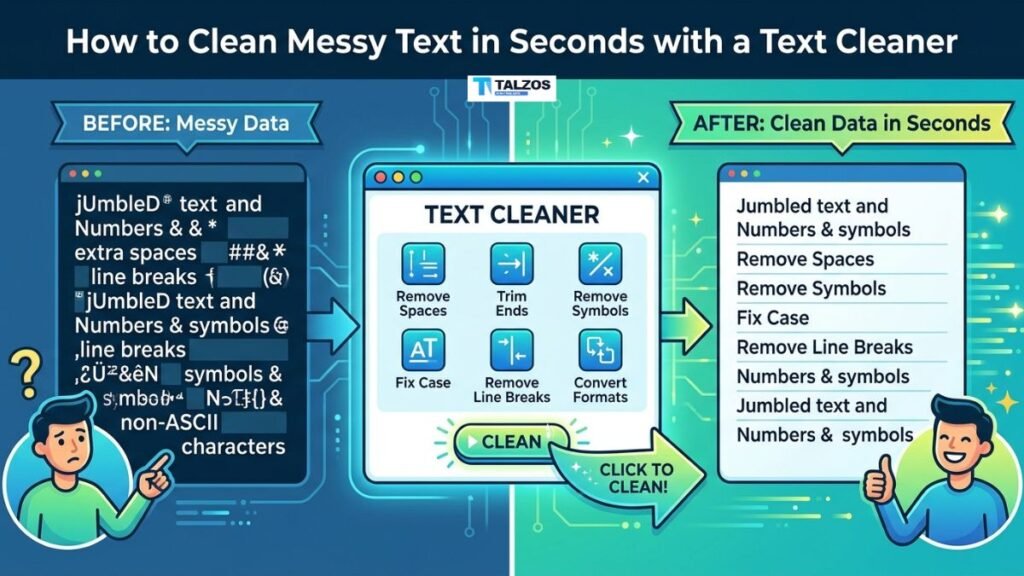
We’ve all been there: you copy text from a PDF, email, or AI chatbot, and it comes out riddled with extra spaces, broken lines, and weird characters. A good text cleaner fixes this mess in seconds—no manual editing required.
In this guide, you’ll learn what causes messy text, which issues a text cleaner can solve, and how to pick the right tool for your workflow. Plus, you’ll get a step-by-step process you can use today.
Why Text Gets Messy in the First Place
Before diving into fixes, it helps to know where the mess comes from. Common culprits include:
- PDFs and scanned documents: Line breaks appear mid-sentence to fit page margins
- Copy-paste from websites: Hidden HTML tags, non-breaking spaces, and extra indentation sneak in
- Email forwards: Multiple blank lines, inconsistent spacing, and signature blocks clutter the text
- AI-generated content: Repetitive phrases, bullet-point artifacts, and inconsistent formatting
- Spreadsheets and databases: Leading/trailing spaces and tab characters used for padding
Each source leaves a different kind of mess, which is why flexible text cleaner tools offer multiple cleaning options.
What a Text Cleaner Actually Does
A text cleaner is a lightweight utility that scans your pasted content and removes or normalizes unwanted characters. Think of it as a spellchecker for formatting—not grammar, but structure.
Typical fixes include:
- Collapsing multiple spaces: Turns “hello world” into “hello world”
- Removing blank lines: Strips empty or whitespace-only lines between paragraphs
- Trimming line edges: Deletes leading and trailing spaces on every line
- Fixing broken line breaks: Joins lines split by PDF margins or narrow columns
- Stripping HTML tags: Removes
<p>,<div>, , and other markup - Deleting invisible Unicode characters: Cleans up non-printing symbols that break searches or imports
- Removing duplicates: Eliminates repeated lines in exported data or logs
Most tools show you a preview and a character-count delta so you know exactly what changed.
When You’ll Actually Need a Text Cleaner
You might not need one every day, but certain workflows make a text cleaner indispensable:
- Content writers: Cleaning AI drafts, guest posts, or repurposed content before publishing
- Developers: Formatting code comments, logs, or config files without manual edits
- Researchers and students: Fixing text copied from academic PDFs or paywalled articles
- Marketers: Preparing social posts, email copy, or ad text from multiple sources
- Data analysts: Normalizing CSV exports, survey responses, or CRM dumps
If you’ve ever spent more than two minutes manually deleting spaces or joining lines, a text cleaner will save you hours over time.
Step-by-Step: How to Clean Messy Text in Seconds
Here’s a simple workflow that works with almost any online text cleaner:
Step 1: Copy Your Messy Text
Grab the content from its source—PDF, Word doc, email, webpage, or AI chat. Don’t worry about how broken it looks; that’s what the tool is for.
Step 2: Paste Into the Text Cleaner
Open your chosen tool and paste the text into the input box. Most accept unlimited length, so even full articles or reports work fine.
Step 3: Choose Cleaning Options
Toggle the fixes you need. Common presets include:
- Basic clean: Extra spaces + blank lines (safe for most text)
- PDF paste fix: Joins broken lines + removes extra spaces
- AI text fix: Strips repetitive phrases and bullet artifacts
- HTML strip: Removes all tags and entities
- Data clean: Trims edges + collapses tabs to spaces
Start conservative—you can always run a second pass if needed.
Step 4: Preview and Apply
Review the cleaned output. Good tools show:
- A side-by-side or before/after view
- Character count reduction (e.g., “Removed 342 characters”)
- Highlighted changes so you can spot over-cleaning
If something looks off, adjust options and re-run.
Step 5: Copy and Use
Once satisfied, click “Copy Result” and paste into your document, CMS, or email. Done in under 30 seconds.
Common Text Cleaner Features Explained
Not all tools are created equal. Here’s what to look for:
Multiple Cleaning Modes
Instead of one-size-fits-all, choose specific fixes:
- Remove extra spaces only
- Remove line breaks only
- Trim leading/trailing whitespace
- Strip HTML or special characters
This prevents accidental over-cleaning (e.g., losing paragraph breaks in an article).
Privacy-First Processing
Your text might contain sensitive info. Prefer tools that:
- Run entirely in your browser (no server upload)
- Don’t store or transmit data
- Work offline once loaded
Avoid tools that require signups or email verification for basic cleaning.
Real-Time Preview
Instant feedback lets you tweak options without guesswork. Look for:
- Live character-count delta
- Visual diff highlighting removed content
- One-click “apply to input” for iterative cleaning
Preset Workflows
Time-savers for common scenarios:
- PDF paste: Fixes margin-induced line breaks
- AI cleanup: Removes “As an AI language model” and similar phrases
- HTML to plain text: Strips tags while preserving structure
- Data normalization: Trims and collapses for CSV imports
Presets reduce decision fatigue and speed up routine tasks.
Mistakes to Avoid When Cleaning Text
Even with a great tool, a few pitfalls can cause headaches:
- Over-cleaning paragraph breaks: Removing all blank lines can merge distinct paragraphs into walls of text
- Ignoring invisible characters: Non-breaking spaces or zero-width characters can break searches or imports if not removed
- Using server-based tools for sensitive data: Uploading contracts, medical records, or client info to unknown servers is a privacy risk
- Skipping the preview: Blindly copying cleaned text can introduce formatting errors you’d catch with a quick glance
- One-pass mentality: Complex messes (e.g., PDF + HTML + AI artifacts) often need two passes with different settings
Take an extra 10 seconds to review—it saves time later.
Text Cleaner vs. Manual Editing: Why Automate?
You could fix messy text by hand, but here’s why automation wins:
- Speed: What takes 5–10 minutes manually happens in 2–3 seconds
- Consistency: Rules apply uniformly—no missed spaces or inconsistent line joins
- Accuracy: Tools catch invisible characters humans can’t see
- Scalability: Clean 100 lines or 10,000 with the same effort
- Repeatability: Save presets for recurring workflows (e.g., weekly report cleanup)
Manual editing makes sense for tiny snippets, but anything longer benefits from a text cleaner.
Choosing the Right Text Cleaner for Your Needs
With dozens of options online, focus on these criteria:
- Browser-based and free: No downloads, no paywalls for basic features
- Privacy-focused: Client-side processing, no data retention
- Flexible options: Multiple toggles, not just one “clean all” button
- Clear preview: Shows what changed and by how much
- No signup required: Instant access without email or accounts
Bookmark 2–3 favorites so you have backups if one goes down.
Real-World Use Cases
Here’s how different professionals use text cleaner tools daily:
Content Marketers
- Clean AI-generated drafts before editing
- Remove HTML from repurposed blog snippets
- Normalize spacing in social media captions
Developers and Data Teams
- Strip comments and formatting from logs
- Normalize CSV fields with inconsistent spacing
- Remove duplicate lines in exported datasets
Academics and Researchers
- Fix text copied from paywalled PDFs with broken lines
- Remove footnote markers and citation artifacts
- Clean survey responses for analysis
Administrative and HR Teams
- Standardize resume text pasted from various sources
- Clean email forwards for internal memos
- Prepare job descriptions from multiple templates
Each group saves 10–30 minutes per task—hours per month.
Quick Checklist: Before You Hit “Copy”
Run through this before using cleaned text:
- [ ] Did I preserve paragraph breaks where needed?
- [ ] Are there any leftover double spaces or tabs?
- [ ] Did I remove HTML tags if pasting into plain text?
- [ ] Is sensitive data safe (used a local-processing tool)?
- [ ] Did I preview changes to catch over-cleaning?
- [ ] Is the output ready for my target platform (CMS, email, doc)?
A 15-second review prevents embarrassing formatting slips.
Final Thoughts: Make Text Cleaning a Habit
Messy text isn’t going away—PDFs, AI tools, and copy-paste workflows are here to stay. But you don’t have to suffer through manual cleanup. A good text cleaner turns a frustrating chore into a two-click task.
Start by bookmarking one privacy-first tool and using it the next time you copy from a PDF or AI chat. Once you see how much time it saves, you’ll wonder how you ever worked without it.