If you’ve ever needed to join several reports, invoices, or forms into one neat document, you know how handy it is to combine PDF files. Whether you’re preparing a client proposal, submitting a job application, or organizing your taxes, merging PDFs saves time and keeps everything in order. This guide walks you through the best, most reliable ways to combine PDF files—using free online tools, built-in features on Mac and Windows, and even mobile options—so you can pick the method that fits your workflow.
Why You’ll Want to Combine PDF Files
Combining PDF files isn’t just about convenience. It helps you:
- Keep related documents together in a single, easy-to-share file.
- Maintain a consistent page order for professional presentations.
- Avoid sending multiple attachments that can clutter inboxes.
- Reduce the risk of missing pages when sharing important information.
And the good news? You don’t need expensive software like Adobe Acrobat to do it. There are plenty of free, fast, and secure ways to combine PDF files right from your browser or using tools already on your device.
Method 1: Use a Free Online PDF Merger (No Signup Required)
For most people, the quickest way to combine PDF files is with a free online merger. These tools run in your browser, require no installation, and often don’t even need an email address or account.
How It Works
- Open a trusted PDF merger site. Popular options include tools from WPS, PDFWix, PDNOB, and others that let you merge without watermarks or file-size caps.
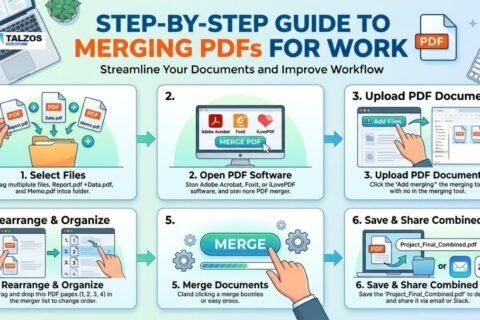
- Upload your PDFs. Drag and drop your files into the upload area or click to select them from your device. Most tools let you add multiple files at once.
- Reorder the files. Use drag-and-drop handles to arrange the PDFs in the exact sequence you want them to appear in the final document.
- Merge and download. Click the “Merge PDF” or “Combine PDFs” button. Once processing is complete, download your single, combined PDF.
Why This Method Shines
- Speed: You can combine PDF files in seconds.
- Simplicity: No learning curve—just upload, reorder, and go.
- Privacy options: Many modern tools process files locally in your browser, so your documents never leave your device.
This approach is ideal for occasional use, quick tasks, or when you’re on a shared or work computer and can’t install software.
Method 2: Combine PDF Files on Mac Using Preview
If you’re on a Mac, you already have a powerful PDF tool built in: Preview. It’s perfect for combining PDF files without downloading anything extra.
Step-by-Step with Preview
- Open your first PDF in Preview. Double-click the file, or right-click and choose “Open With > Preview.”
- Show thumbnails. Go to View > Thumbnails to display the sidebar with page previews.
- Drag in additional PDFs. Open Finder, then drag other PDF files directly into the thumbnail sidebar. They’ll be added as new pages or sections.
- Reorder pages if needed. Drag individual thumbnails up or down to adjust the sequence.
- Export as a single PDF. Go to File > Export as PDF, choose a name and location, and save your merged document.
When to Use Preview
- You regularly work with PDFs on macOS.
- You prefer offline, built-in tools for sensitive documents.
- You want basic merging without extra features or accounts.
Preview is especially useful for students, freelancers, and small business owners who need to combine PDF files often but don’t want to rely on third-party websites.
Method 3: Merge PDFs on Windows Without Adobe Acrobat
Windows users have several options to combine PDF files without paying for Adobe Acrobat. You can use free desktop software, built-in printing features, or browser-based tools.
Option A: Free Desktop Apps (e.g., PDF24)
PDF24 is a popular, completely free desktop suite for Windows that includes a dedicated “Merge PDF” tool.
How to use PDF24 to combine PDF files:
- Download and install PDF24 Creator from pdf24.org.
- Open PDF24 and select “Merge PDF.”
- Add your PDF files, arrange the order, and click “Merge.”
- Save the combined file to your desired folder.
This method is great if you handle large files, work offline frequently, or want a full set of PDF tools (split, compress, edit) in one package.
Option B: Microsoft Print to PDF (Built-In)
Windows 10 and 11 include “Microsoft Print to PDF,” which can help you combine PDFs in a pinch, though it’s less flexible than dedicated mergers.
Basic workflow:
- Open your first PDF in any viewer (Edge, Chrome, etc.).
- Press Ctrl+P to open the Print dialog.
- Choose “Microsoft Print to PDF” as the printer.
- Print to create a new PDF. Repeat for other files, then use an online merger or PDF24 to join them if needed.
While not as seamless as a true merger, this trick is handy when you can’t install software and need a quick workaround.
Method 4: Combine PDF Files on iPhone and iPad
Mobile users can also combine PDF files without extra apps, thanks to iOS’s built-in Files app and a few clever tricks.
Using the Files App
- Open the Files app and navigate to your PDFs.
- Tap “Select,” then tap each PDF in the order you want them combined.
- Tap the three-dot “More” button.
- Choose “Create PDF.” iOS will generate a single PDF with all selected files.
This is perfect for on-the-go professionals, students, or anyone who needs to quickly merge receipts, forms, or notes before sharing.
Alternative: Google Drive Scan Feature
If you use Google Drive:
- Open the Google Drive app.
- Tap the “+” button, then “Scan.”
- Instead of scanning, tap the gallery icon to import existing PDFs.
- Add each PDF in order, then save as one file.
While slightly more steps, this method works well if your documents are already stored in the cloud.
Method 5: Advanced Options for Power Users
If you’re comfortable with command-line tools or open-source software, there are robust ways to combine PDF files that offer maximum control and automation.
Command Line with pdfunite (Linux/macOS)
For terminal-savvy users, pdfunite (part of poppler-utils) is a fast, scriptable way to merge PDFs:
pdfunite file1.pdf file2.pdf file3.pdf output.pdfThis command combines file1.pdf, file2.pdf, and file3.pdf into output.pdf in that exact order.
Why use this?
- Automate merging in scripts or batch workflows.
- Process dozens of files without manual clicking.
- Keep everything offline and lightweight.
LibreOffice Draw (Cross-Platform)
LibreOffice Draw, a free, open-source office suite, can open and combine PDFs:
- Open LibreOffice Draw.
- Import your first PDF.
- Insert additional PDFs as pages.
- Export the result as a single PDF.
This method is handy if you already use LibreOffice for documents and presentations and want an all-in-one solution.
Tips for a Smooth PDF Merging Experience
No matter which method you choose, a few best practices will help you combine PDF files more effectively:
- Name your files clearly before merging (e.g., “01_Cover,” “02_Report,” “03_Appendix”) so the order is obvious.
- Check page orientation and size if mixing documents from different sources; some tools let you adjust this before merging.
- Preview before downloading when using online tools to ensure pages appear in the right sequence.
- Use local-processing tools for sensitive documents like contracts, IDs, or financial records.
- Keep a backup of your original files until you’ve verified the merged PDF is correct.
Common Questions About Combining PDF Files
Can I combine password-protected PDFs?
Most free online mergers can’t merge password-protected files unless you remove the password first. Desktop tools like PDF24 or LibreOffice may offer more options, but you’ll typically need the password to unlock each file before merging.
Will merging reduce quality?
Reputable tools preserve the original quality of your PDFs. However, some online services may compress images to reduce file size. If quality is critical (e.g., for print), choose a tool that explicitly states it doesn’t compress or offers a “high quality” option.
Is it safe to use online PDF mergers?
Many modern tools process files entirely in your browser, meaning your documents never upload to a server. Look for phrases like “no upload,” “runs in your browser,” or “100% private” to ensure your data stays on your device.
Choosing the Right Method for You
The best way to combine PDF files depends on your device, frequency of use, and privacy needs:
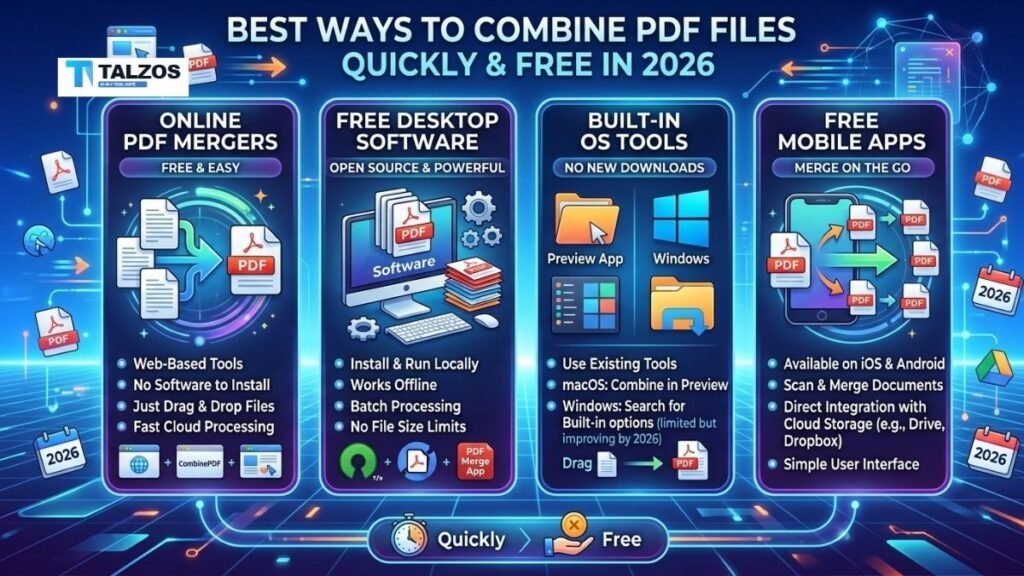
- Occasional, quick merges: Use a free online PDF merger with no signup.
- Mac users: Preview is fast, built-in, and reliable.
- Windows power users: PDF24 gives you a full offline toolkit.
- Mobile workflows: iOS Files app or Google Drive scan feature work well on the go.
- Automation and scripting: Command-line tools like
pdfuniteoffer maximum flexibility.
Final Thoughts
You don’t need expensive software or technical expertise to combine PDF files. With the right tool—whether it’s a browser-based merger, your Mac’s Preview app, a free Windows utility, or even your iPhone’s Files app—you can join multiple documents into one clean, professional PDF in under a minute.
Next time you’re faced with a stack of separate PDFs, pick the method that fits your situation and merge with confidence. Your recipients (and your future self) will thank you for the tidy, organized result.