Photos are one of the easiest ways to capture information. We use them to save receipts, scan forms, preserve memories, record notes, and share visual content. However, managing a large collection of separate image files can quickly become inconvenient.
This is where converting image to PDF becomes useful. A PDF can bring multiple photos together in one organized document while making them easier to share, print, store, and protect. Instead of sending several JPG or PNG files, you can create one professional-looking file that recipients can open on almost any device.
Whether you are a student, office worker, business owner, photographer, or casual smartphone user, converting photos to PDF can simplify everyday digital tasks. This article explores the main benefits, practical use cases, quality considerations, and situations where a PDF is more helpful than a standard image file.
What Is Image to PDF Conversion?
Image to PDF conversion is the process of placing one or more image files inside a PDF document. Common source formats include JPG, JPEG, PNG, TIFF, and sometimes HEIC.
The image itself does not automatically become editable text. In a basic conversion, the photo is placed on a PDF page. If the document contains words that need to be searched or copied, you may need a tool with optical character recognition, commonly called OCR.
You can convert a single photo into a one-page PDF or combine many photos into a multipage document. The final file can then be viewed, printed, shared, archived, or secured using available PDF features.
Benefits of Converting Photos to PDF
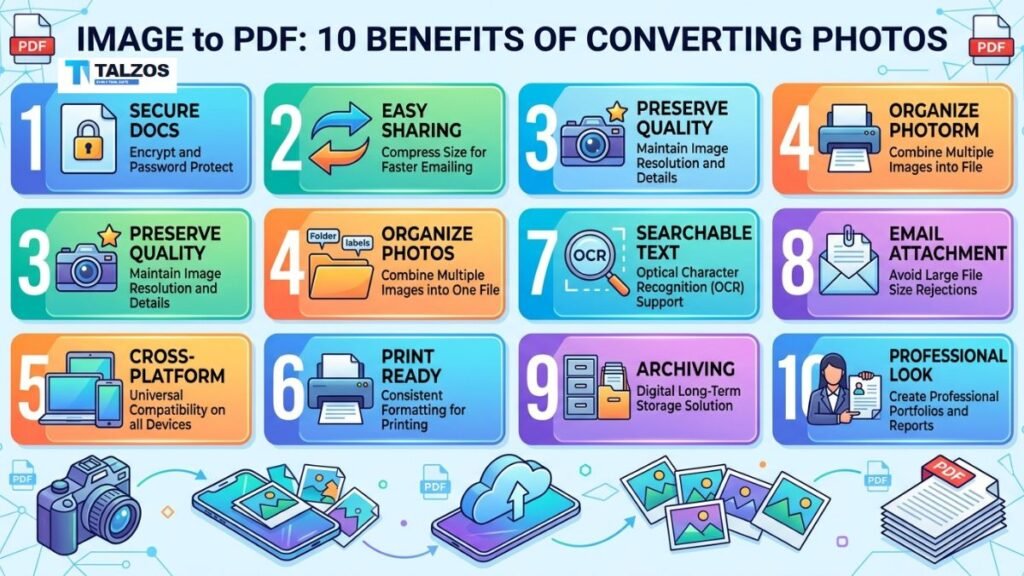
1. Combine multiple photos in one file
One of the biggest advantages of image to PDF conversion is the ability to combine several photos into one document.
Imagine photographing every page of a signed agreement. Sending twelve separate image attachments can be confusing for both you and the recipient. By combining the photos into one PDF, you create a document that is easier to open and review from beginning to end.
This is also useful for:
- Receipts and expense records.
- Scanned application forms.
- School assignments.
- Product catalogs.
- Real estate documents.
- Photo portfolios.
- Meeting notes.
- Insurance evidence.
You can usually arrange the pages before saving the file, ensuring that the images appear in the correct order.
2. Make sharing simpler
Sharing one PDF is often easier than sending a group of image files. Email services, online forms, messaging platforms, and business portals commonly accept PDF documents.
A single file also reduces the chance that an image will be forgotten or sent out of sequence. Recipients do not have to download each photo individually, and they can review the content as one continuous document.
PDF is an open format that can be viewed across many devices and operating systems, which helps reduce compatibility problems when sharing files.
For example, a customer may open the same PDF on a phone, tablet, Windows computer, or Mac without needing the application you used to create it.
3. Improve file organization
A folder filled with files named IMG_2041.jpg, IMG_2042.jpg, and IMG_2043.jpg is difficult to manage. Converting those photos into a clearly named PDF can make your digital records much easier to understand.
You might name a document:
March_Business_Receipts.pdfApartment_Application.pdfFamily_Trip_2026.pdfProduct_Catalog.pdf
Instead of searching through dozens of unrelated files, you can locate one document with a descriptive name. Combining related images also reduces digital clutter and creates a more dependable filing system.
This is particularly valuable for businesses that need to archive invoices, delivery confirmations, inspection photos, or signed paperwork.
4. Preserve the layout of your content
Individual images can display differently depending on the software, screen, or device being used. A PDF is designed to preserve page structure, including image placement, page dimensions, and orientation.
This does not mean every PDF conversion produces identical results automatically. Your chosen page size, margins, scaling, and compression settings still matter. However, once the document is correctly created, it is generally easier to maintain a consistent appearance when sharing or printing.
PDFs are widely used because they can preserve the positioning of images, text, and other page elements across platforms.
This makes the format useful for formal documents, presentations, portfolios, and records that need to look polished.
5. Create a more professional presentation
A collection of separate photos can feel informal, even when the content itself is important. A PDF gives your material a clear beginning, middle, and end.
You can add a cover page, arrange images logically, include captions, and use consistent sizing. For example, a photographer might create a PDF portfolio instead of sending individual sample images. A contractor could prepare a before-and-after project report. A small business might turn product photos into a simple catalog.
A well-arranged PDF shows that you have considered the reader’s experience. It makes the information easier to follow and can create a stronger professional impression.
6. Reduce digital clutter and sometimes file size
PDF conversion may make a collection of photos easier to store and manage. Depending on the source images and conversion settings, the resulting PDF may be smaller than the combined size of the individual files.
Compression can reduce storage requirements while preserving acceptable visual quality. Some conversion services specifically highlight smaller file sizes, easier downloads, and reduced storage use as advantages of converting JPG files to PDF. canva
However, file size is not guaranteed to decrease in every case. High-resolution photos may still create a large PDF, particularly when the converter avoids compression. If the document is too large, choose an optimized setting or compress the PDF after conversion.
7. Make printing more predictable
Printing individual images can produce inconsistent results. One photo may print vertically, another horizontally, and a third may be cut off because of its dimensions.
A PDF allows you to prepare the pages before printing. You can select page size, orientation, margins, and scaling. This gives you greater control over how the final document will appear on paper.
For example, if you are printing scanned receipts, you can place each receipt on a standard page and keep the pages in chronological order. If you are printing photographs, you can choose a layout that displays them at a suitable size.
Always inspect the print preview before printing. A “fit to page” option can help prevent unwanted cropping.
8. Add protection to sensitive files
PDF documents can provide security options that are not normally available in ordinary image files. Depending on the software you use, you may be able to add password protection, encryption, permissions, watermarks, or digital signatures.
These features can help protect documents containing private information, such as:
- Identification photos.
- Tax records.
- Medical documents.
- Signed contracts.
- Financial statements.
- Personal addresses.
- Confidential business material.
A password can restrict who opens the file, while permissions may limit editing, copying, or printing. A watermark can identify the owner or indicate that a document is confidential.
Security features vary between PDF tools, so do not assume that every converter offers the same level of protection. For highly sensitive files, consider using trusted offline software rather than uploading the images to an unfamiliar online service.
9. Support searchable documents with OCR
A regular image-based PDF stores photos as visual content. This means the words shown in the image may not be searchable or selectable.
OCR can change that. An OCR-enabled image to PDF tool analyzes the image and creates a text layer. After processing, you may be able to search for words, copy text, or use accessibility features.
OCR is particularly helpful for:
- Scanned invoices.
- Printed meeting notes.
- Receipts.
- Forms.
- Book pages.
- Business archives.
- Classroom handouts.
OCR is not perfect. It can confuse similar characters, misread handwriting, or struggle with poor lighting and unusual fonts. Always check important numbers, names, and dates after processing.
10. Support long-term archiving
Photo files can become difficult to identify and manage over time, especially when they are stored across several devices. A PDF can act as a stable container for related images and supporting information.
For example, you could combine photographs of a home renovation with receipts, warranties, and notes in one project archive. You might also create a PDF containing family photos from a particular event and add captions or dates.
A descriptive file name and logical page order make the archive easier to understand years later. For valuable records, keep a backup in a second location rather than relying on one device or cloud account.
Everyday Uses for Photo PDFs
The benefits of image to PDF conversion apply to many personal and professional situations.
Students
Students can photograph handwritten work, textbook pages, or completed worksheets and combine them into one PDF for submission. A single document is usually easier for instructors to review than several separate attachments.
Businesses
Companies can convert receipts, invoices, signed forms, and inspection photos into organized PDF records. This supports easier sharing between departments and more consistent document storage.
Freelancers
Freelancers can use PDFs for portfolios, proposals, invoices, and project documentation. Combining visual examples with descriptions creates a more complete presentation.
Travelers
Travelers may create a PDF containing copies of booking confirmations, identification documents, tickets, and emergency information. Sensitive documents should be protected and stored securely.
Families
Families can preserve collections of photographs, children’s artwork, recipes, or important household records in organized PDF files.
Image to PDF Conversion Best Practices
To create a useful PDF, pay attention to the source images and conversion settings.
- Use clear, well-lit photos.
- Crop unnecessary backgrounds and borders.
- Rotate sideways images before conversion.
- Arrange pages in the correct order.
- Choose A4 or Letter size for ordinary documents.
- Use portrait orientation for most forms and pages.
- Select a higher-quality setting for printing.
- Compress the file when it is intended for email or online upload.
- Use OCR when searchable text is required.
- Open the finished PDF and check every page.
- Protect private documents with a trusted security feature.
A few minutes of preparation can prevent blurry pages, missing images, oversized files, and confusing layouts.
PDF or Image: Which Is Better?
Neither format is universally better. The right choice depends on how you plan to use the content.
| Need | Better choice |
|---|---|
| Share one photograph on social media | Image file |
| Edit a photo in an image editor | Image file |
| Combine several pages | |
| Submit a formal document | |
| Print a consistent multipage file | |
| Upload a single visual asset to a website | Image file |
| Protect several images together | |
| Search text inside scanned pages | PDF with OCR |
Images are excellent for editing and visual display. PDFs are usually more practical for documents, records, sharing, and printing.
Final Thoughts
Converting photos to PDF format can make your digital files easier to share, organize, print, protect, and preserve. The process is useful for everything from sending a few scanned pages to building a professional portfolio or creating a long-term archive.
The most important benefits of image to PDF conversion are convenience and control. You can combine related photos, give them a logical order, maintain a consistent layout, and create one document that is simpler for everyone to use.
Choose the conversion method that fits your situation. Built-in computer and mobile tools are often enough for basic tasks, while dedicated PDF software is useful when you need OCR, compression, editing, or advanced security. Before sharing the final file, review its quality, page order, size, and privacy settings.