Quick show of hands: when was the last time you needed to “quickly merge two PDFs” and just typed that into Google, clicked the first result, and uploaded a signed lease or a tax form to a website you’d never heard of before that exact moment? Most of us have done it. It’s fine, probably. Probably.
Here’s the thing nobody mentions on those sites: the moment you drop a file into most online PDF tools, it leaves your computer. It travels to a server somewhere, gets processed, and sits there for a while before it’s deleted. iLovePDF, for example, says files are removed within two hours. Two hours is not zero. And for one afternoon, your bank statement, your kid’s enrollment form, or your signed NDA has technically left your hands.
So what’s the actual alternative?
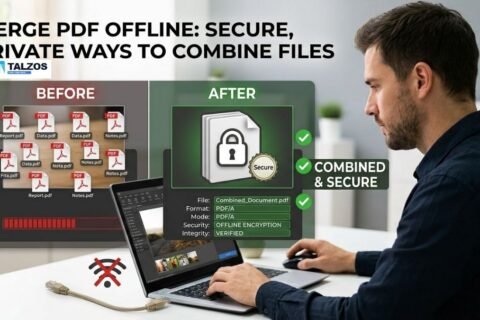
Modern browsers are genuinely powerful. JavaScript running in a browser tab can now merge, split, compress, and re-render PDF pages entirely on your own device — no server round trip required. That’s not a marketing gimmick, it’s just how the technology has caught up. A handful of tools are built this way, and it changes the calculation completely: if the processing never leaves your laptop, there’s nothing to intercept, nothing sitting on a third-party server, and no two-hour window where the file exists somewhere you don’t control.
Let’s walk through the PDF tasks people run into most often, and the browser-based way to do each one.
Combining files into one document
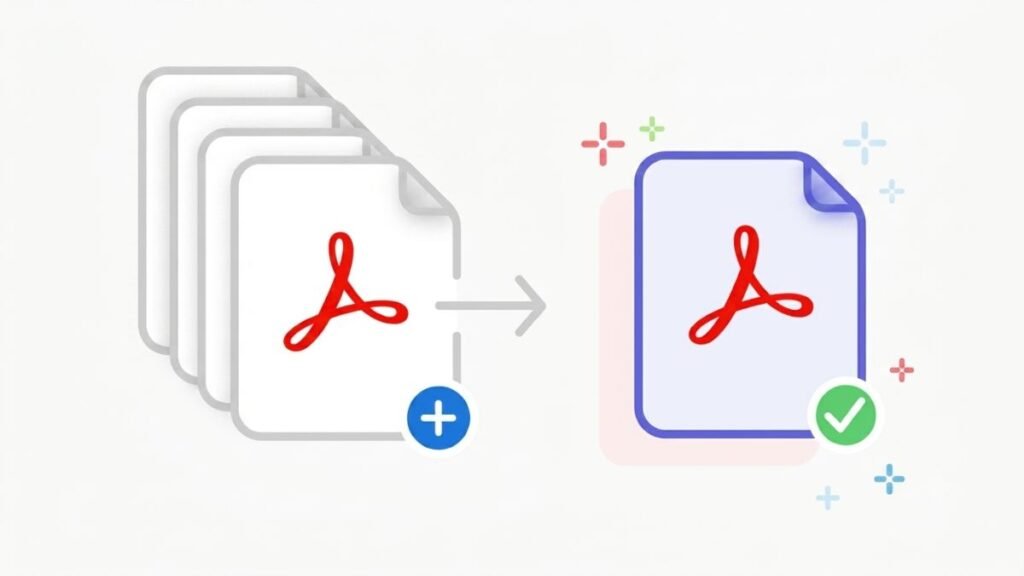
Job applications, invoice bundles, scanned contracts with a signature page tacked on at the end — combining PDFs is probably the single most common document task there is. The trick is getting the page order right before you commit, which is exactly what a drag-and-drop file list is for. Talzos’
Pulling a document apart
The opposite problem shows up just as often: you’ve got one long PDF and only need three pages out of it, or a scanned batch of receipts that got saved as a single 40-page file when they should really be ten separate ones.
Fixing page order, rotation, and stray pages
Anyone who has scanned a stack of paper knows the drill: page four comes out upside down, there’s a blank page from the scanner’s auto-feeder, and the whole thing is in the wrong order because you dropped the stack on the way to the machine.
Shrinking a file that’s too big to email
Most email providers cap attachments around 25MB, and a scanned, photo-heavy PDF blows past that embarrassingly fast.
Converting between photos and PDF
Sometimes what you have is a photo and what you need is a PDF — a signed page shot on your phone, for instance.
Locking a document down before you send it
Once the file is exactly how you want it, there’s often one more step worth taking: a password.
One more thing worth checking: hidden metadata
Even a perfectly organized, appropriately sized, password-protected PDF can still carry an invisible metadata layer — the name of whoever created it, the software used, timestamps you never meant to share. Before publishing or forwarding anything more widely than intended, running it through
Putting it together
Say you’re a freelancer wrapping up a project: you’d merge the final report with the signed agreement using Merge PDF, compress the combined file so it’s small enough to email, and lock it with a password before sending it to the client. Three tools, three minutes, and at no point does the document touch a server that isn’t yours. That’s really the whole idea — not that every online tool is out to get you, but that for anything you’d rather keep private, there’s no good reason to upload it in the first place when your browser can do the job just as well.
A quick reality check on “free” upload-based tools
To be fair to the big names in this space, iLovePDF and Smallpdf aren’t doing anything shady — they’re transparent about their retention windows, and for a huge share of everyday PDF tasks (a flyer, a public menu, a form with nothing sensitive in it) uploading is genuinely not a problem. The distinction worth keeping in your head isn’t “upload tools are bad,” it’s “match the tool to what’s actually in the file.” A birthday party invite doesn’t need browser-based processing. A signed lease does.
The trade-off works the other way too: browser-based tools are limited by your own device’s memory and processing power rather than a data center’s, so a genuinely massive file — hundreds of megapages, gigabyte-scale scans — can be slower on your laptop than on a server built to chew through it. For the overwhelming majority of personal and small-business documents, that’s a non-issue. For a 2,000-page archival scan, it might matter.
Frequently asked questions
Do these tools work on a phone, or only a laptop?
They work in any modern mobile browser the same way they work on desktop, since the processing is just JavaScript running in the browser tab rather than a native app. The interface is a little more cramped on a small screen, but merging or compressing a PDF from your phone works the same way.
What happens to my file if I close the tab halfway through?
Nothing is saved anywhere, so closing the tab simply discards whatever was in progress. There’s no draft sitting on a server to worry about deleting later — there was never a copy anywhere but your own device to begin with.
Is there a catch — a hidden file limit or a premium tier?
No premium tier, no daily cap, no watermark. The only practical ceiling is how much your own device’s memory can handle, which for the vast majority of resumes, contracts, and reports is not a limiting factor at all.
Can I use these tools for client work, not just personal documents?
Yes — a lot of freelancers and small agencies use exactly this workflow (merge, compress, password-protect) when preparing a final deliverable packet for a client, precisely because the client’s files never touch a third-party server along the way.
Every tool mentioned here — plus the rest of the PDF, resume, image, and text tools on the site — is free to use with no signup, listed on the Talzos