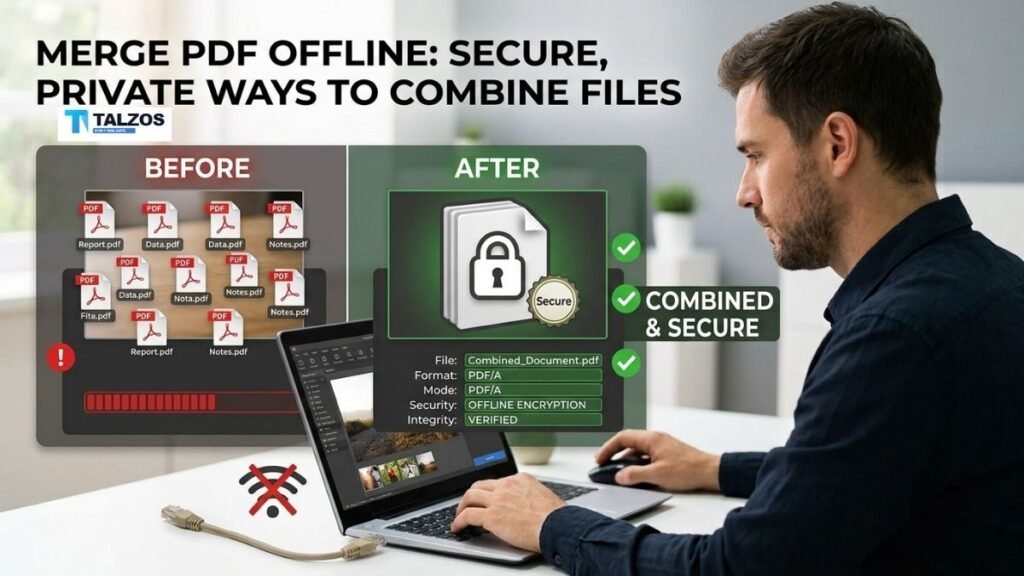
In a world where data privacy matters more than ever, knowing how to merge PDF files without uploading them online is a skill worth mastering. Whether you’re handling sensitive contracts, personal records, or confidential reports, you don’t want your documents sitting on someone else’s server—even temporarily. Fortunately, there are several reliable, secure, and free ways to combine PDFs locally on your device or directly in your browser without sending your files anywhere.
This guide walks you through practical, privacy-first methods to merge PDF files safely, using tools that keep your data 100% on your machine.
Why You Should Avoid Online PDF Mergers
Many free online PDF tools promise quick merging—but at a cost. When you upload your files to these services, you’re essentially handing over your data to a third party. Even if they claim to delete files after processing, there’s no real guarantee. For sensitive documents, that’s a risk you don’t need to take.
Offline or browser-based merging tools process your files locally. That means your PDFs never leave your device. You get the same convenience without compromising privacy or security.
Method 1: Use Browser-Based PDF Mergers (No Upload Required)
One of the easiest ways to merge PDF files without uploading them is by using modern browser-based tools that run entirely in your browser. These tools use JavaScript to process your files locally, so nothing is sent to a server.
How It Works
- Open a trusted browser-based PDF merger like PDF Safe, PDFLark, or PDF Merger extensions for Chrome or Firefox.
- Drag and drop your PDF files into the tool’s interface.
- Reorder the files as needed using drag-and-drop or arrow buttons.
- Click “Merge”—the tool combines the files right in your browser.
- Download the merged PDF instantly.
Because everything happens client-side, your files stay private. Some tools even work offline once loaded, so you can disconnect from the internet and still merge your documents.
Recommended Tools
- PDF Safe – No account, no file size limits, fully browser-based.
- PDFLark Merge Tool – Simple interface, fast processing, zero uploads.
- PDF Merger (Chrome Extension) – Works offline, lets you select specific pages.
- PDF Merger and Compressor (Firefox Add-on) – Local processing, no server contact.
These tools are ideal for quick tasks and don’t require any installation beyond adding a browser extension.
Method 2: Desktop Software for Offline PDF Merging
If you prefer dedicated software or need to merge large or numerous files regularly, desktop applications offer robust, offline solutions. These programs install directly on your computer and process everything locally.
Top Offline PDF Merger Tools
1. PDFsam Basic (Free & Open Source)
PDFsam Basic is a lightweight, open-source tool available for Windows, Mac, and Linux. It’s designed specifically for splitting and merging PDFs without any cloud dependency.
How to use PDFsam Basic:
- Download and install from
- Open the program and select “Merge.”
- Add your PDF files, arrange the order, and click “Run.”
- Save your merged document locally.
PDFsam is fast, reliable, and respects your privacy completely.
2. PDFgear (Free for Windows & Mac)
PDFgear is a user-friendly PDF editor that includes a merge feature. It’s free, doesn’t require an account, and processes files offline.
Steps to merge with PDFgear:
- Launch PDFgear and choose “Merge & Split.”
- Select “Merge,” then add your PDF files.
- Arrange the sequence and click “Merge.”
- Save the output file to your desired location.
PDFgear also offers additional features like compression and annotation, making it a versatile choice.
3. PDF24 Creator (Windows)
PDF24 Creator is a comprehensive PDF toolkit that works entirely offline. It’s free for personal use and includes a visual interface for merging files.
Using PDF24 Creator:
- Install PDF24 from
- Open the “Creator” app and drag in your PDFs.
- Reorder pages or files as needed.
- Save the combined document.
PDF24 is especially useful if you need more than just merging—think converting, editing, or securing PDFs.
Method 3: Command-Line Tools for Advanced Users
For tech-savvy users or those automating workflows, command-line tools offer powerful, scriptable ways to merge PDFs offline.
PDFtk (PDF Toolkit)
PDFtk is a command-line utility available for Windows, Mac, and Linux. It’s part of the larger PDFtk Server suite but has a free basic version.
Example command:
pdftk file1.pdf file2.pdf cat output merged.pdfThis command merges file1.pdf and file2.pdf into merged.pdf. PDFtk is fast, scriptable, and ideal for batch operations.
QPDF
QPDF is another open-source command-line tool that can merge, split, and manipulate PDFs. It’s known for preserving document structure and metadata accurately.
Basic merge command:
qpdf --empty --pages file1.pdf 1-z --pages file2.pdf 1-z -- merged.pdfQPDF is great for users who need precise control over PDF manipulation.
Method 4: Built-In OS Tools (Limited but Handy)
Some operating systems include basic PDF handling capabilities that can be repurposed for merging.
macOS Preview
On Mac, you can use the built-in Preview app to combine PDFs:
- Open the first PDF in Preview.
- Show the thumbnail sidebar (View > Thumbnails).
- Drag additional PDF files into the sidebar.
- Reorder pages as needed.
- Save the combined document.
While not as flexible as dedicated tools, Preview is convenient for quick merges without installing anything.
Windows Print to PDF (Workaround)
Windows doesn’t have a native merge feature, but you can use the “Print to PDF” function as a workaround:
- Open the first PDF in a viewer.
- Print it, selecting “Microsoft Print to PDF” as the printer.
- Save as a new file.
- Repeat for other PDFs, then use a tool like PDFsam to combine them.
It’s not ideal, but it’s a fallback if you can’t install new software.
Tips for Smooth PDF Merging
- Check file order before merging – It’s easier to arrange files beforehand than to fix page order later.
- Use descriptive filenames – Naming files like “01_Cover.pdf,” “02_Content.pdf,” etc., helps keep things organized.
- Preview the merged file – Always open the final PDF to ensure everything looks correct.
- Keep originals intact – Merging creates a new file; your originals remain unchanged unless you delete them.
- Watch file size – Merging many large PDFs can create a hefty file. Consider compressing if needed.
Privacy Best Practices
Even with offline tools, it’s wise to follow good digital hygiene:
- Download tools from official sources – Avoid third-party sites that might bundle malware.
- Keep software updated – Security patches matter, even for offline apps.
- Scan files if unsure – If you’re merging PDFs from unknown sources, run them through antivirus software first.
- Delete temporary files – Some tools create cache or temp files; clean them up after use.
When to Use Online vs. Offline Tools
Offline tools are best for:
- Sensitive or confidential documents
- Large files or batch operations
- Environments with limited or no internet access
Online tools may be acceptable for:
- Non-sensitive, public documents
- One-off tasks when you can’t install software
- Quick merges on shared or restricted devices
But if privacy is a priority, offline is always the safer bet.
Final Thoughts
Merging PDF files doesn’t have to mean sacrificing privacy. With the right tools—whether browser-based, desktop software, or command-line utilities—you can combine documents quickly and securely without ever uploading them online. From free extensions like PDF Merger to robust apps like PDFsam Basic and PDFgear, there’s a solution for every need and skill level.
Next time you need to merge PDF files, skip the online uploaders and choose a method that keeps your data where it belongs: on your device.