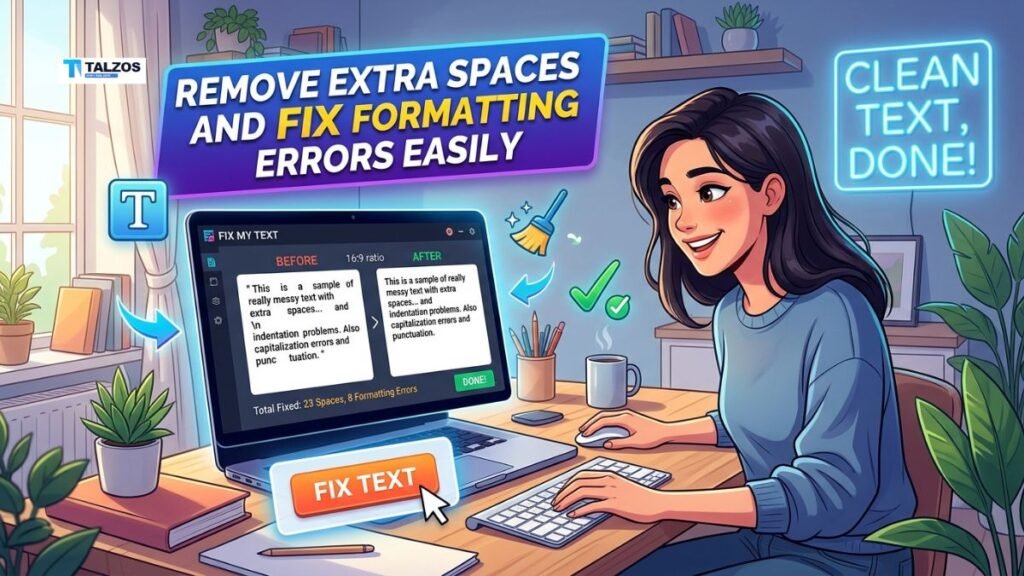
Messy spacing can make even excellent writing look rushed, unprofessional, and difficult to read. Whether you are editing a blog post, preparing an invoice, copying content from a PDF, or polishing a resume, learning how to remove extra spaces is a small task that delivers a big improvement.
Extra spaces are rarely intentional. They usually appear after copying text from websites, PDFs, emails, AI tools, spreadsheets, or scanned documents. You may see double spaces between words, large blank gaps between paragraphs, uneven indentation, tabs in the wrong places, or invisible characters that disrupt formatting.
The good news is that you do not need to repair every issue manually. With a clear cleanup process and the right text tools, you can remove extra spaces and correct common formatting errors in minutes.
Why Extra Spaces Create Problems
Spaces help readers understand where one word, sentence, or paragraph ends. However, too much whitespace creates visual clutter. A document with uneven spacing can look poorly formatted, even when the actual information is accurate and useful.
For example, consider this sentence:
Freelancers should send clear invoices to clients.
The sentence is understandable, but the double spaces interrupt the reading flow. Now compare it with the cleaned version:
Freelancers should send clear invoices to clients.
The second version looks more natural, professional, and ready to publish.
Extra spaces can also create practical problems. They may affect text alignment, page layout, form fields, data imports, and search-and-replace operations. In spreadsheets, unwanted leading or trailing spaces can even cause duplicate-looking values and formula errors.
Common issues include:
- Double or multiple spaces between words
- Spaces before commas, periods, or other punctuation
- Leading spaces at the beginning of lines
- Trailing spaces at the end of lines
- Extra blank lines between paragraphs
- Tabs used instead of consistent spacing
- Non-breaking or invisible spaces copied from web pages
- Broken lines created when text is copied from a PDF
Text copied from websites, email messages, PDFs, and other sources often carries hidden whitespace or inconsistent line breaks, which is why a cleanup pass is valuable before publishing or sharing a document.
Common Causes of Formatting Errors
Before you remove extra spaces, it helps to understand where they come from. Most formatting problems are introduced during copying, editing, or converting files.
Copying From PDFs
PDF files preserve a page’s visual layout, not always the underlying text structure. When you copy text from a PDF, words may break across lines, paragraphs may include random line breaks, and spacing can become inconsistent.
For example, a two-column PDF can paste into a document in the wrong order. A heading may be separated from its paragraph, or words may have spaces inserted between every character. This is common with reports, resumes, invoices, research documents, and scanned files.
Pasting From Websites
Web pages use HTML, CSS, non-breaking spaces, line breaks, and styled containers to control how content appears in a browser. When you paste that content into a document editor, some of those formatting elements may come with it.
The visible result might be strange indentation, extra blank space, inconsistent fonts, or gaps around headings. Pasting text as plain text can prevent many of these issues before they start.
Manual Editing Habits
Many people press the spacebar repeatedly to align text or press Enter multiple times to create more room between paragraphs. This may look acceptable on one screen, but it often breaks when the document is viewed on another device, converted to PDF, or opened in a different application.
A better approach is to use proper alignment, paragraph spacing, margins, tables, and document styles instead of manual spaces.
AI, OCR, and Conversion Tools
Text generated through optical character recognition (OCR) can contain unusual errors. Scanned documents may introduce random spaces inside words, merge separate words together, or create repeated line breaks.
Likewise, text transferred between applications may include hidden Unicode spaces. A standard cleanup tool can identify and normalize many of these issues, including tabs, blank lines, and multiple spaces.
How to Remove Extra Spaces Manually
Manual cleanup works best for short documents or isolated errors. If you only notice a few awkward gaps, you can fix them quickly with your keyboard.
Place the cursor beside the unwanted space and use:
- Backspace to delete characters to the left of the cursor
- Delete to remove characters to the right
- Arrow keys to inspect space around punctuation and line endings
- Show formatting marks to reveal paragraph breaks, tabs, and hidden spacing
Manual editing is useful when you need to preserve unusual formatting, such as poetry, tables, code, addresses, or carefully structured product specifications. It gives you complete control, but it can become slow and error-prone in long files.
If your document has dozens of double spaces, repeated blank lines, or copied PDF text, use automated cleanup instead.
Use Find and Replace in Word
Microsoft Word’s Find and Replace feature is one of the fastest ways to remove extra spaces throughout a document. It is particularly helpful for long articles, reports, proposals, resumes, and client documents.
To replace double spaces with single spaces:
- Open your document in Microsoft Word.
- Press Ctrl + H on Windows to open Find and Replace.
- In the Find what field, enter two spaces.
- In the Replace with field, enter one space.
- Select Replace All.
- Repeat the process until Word reports no further replacements.
This method reduces repeated spaces without removing the necessary single spaces between words. Guides for Word commonly recommend running the replacement more than once because a sequence of three or more spaces may require multiple passes.
Before using Replace All in an important document, save a duplicate copy. Bulk changes are efficient, but reviewing the updated text afterward helps you catch special cases such as intentional spacing in tables or formatted labels.
Fix Extra Paragraph Gaps
Large blank gaps are not always caused by empty lines. Sometimes the issue comes from paragraph settings, including extra space before or after paragraphs.
To fix this in Microsoft Word:
- Select the affected text, or press Ctrl + A to select the entire document.
- Go to the Home tab.
- Open Line and Paragraph Spacing.
- Choose Remove Space Before Paragraph or Remove Space After Paragraph.
- Review the layout and adjust line spacing if needed.
You can also open paragraph settings and set consistent values for:
- Spacing before paragraphs
- Spacing after paragraphs
- Line spacing
- Indentation
- Text alignment
Using paragraph settings gives you a cleaner, more stable layout than adding multiple Enter presses. Word provides controls for removing space before or after a paragraph, while Find and Replace can handle repeated spaces within the text itself.
Remove Extra Spaces With a Text Cleaner
An online text cleaner is often the easiest choice when you need to clean copied text quickly. These tools are especially useful when content comes from a PDF, a website, an email, AI output, or a spreadsheet.
A typical text-cleaning workflow looks like this:
- Copy the messy text.
- Paste it into the text cleaner.
- Select the cleanup options you need.
- Remove extra spaces, tabs, blank lines, and trailing whitespace.
- Copy the cleaned version back into your document.
- Review headings, lists, links, tables, and special characters.
Many cleaners allow users to choose individual actions, such as collapsing multiple spaces, removing blank lines, converting tabs to spaces, and deleting invisible Unicode characters.
This flexibility matters because different files need different types of cleanup. For example, an article may need double spaces removed but should keep paragraph breaks. A code snippet, on the other hand, may require its indentation to remain unchanged.
Preserve Formatting That Matters
The goal is not to remove every space. The goal is to remove unnecessary spaces while protecting meaningful formatting.
Be careful when editing:
- Poetry and song-like layouts, where spacing may be deliberate
- Programming code, where spaces and indentation can affect functionality
- Tables, where extra spacing may be used for visual alignment
- Addresses, labels, and forms with fixed field layouts
- Legal, academic, or client documents with approved formatting rules
- Product data and CSV exports, where a space can change a value
Always preview the cleaned text before publishing, printing, or sending it. Automated tools are excellent at repetitive cleanup, but they cannot always understand the intent behind every layout choice.
A practical rule is simple: clean the text first, then check its structure. Review headings, paragraphs, bullet points, links, dates, names, numbers, and any content that must remain exact.
Remove Spaces Around Punctuation
Formatting errors around punctuation are easy to miss. A space before a comma, period, colon, or question mark can make text look unpolished.
Incorrect examples:
- This is an important update .
- Please send the invoice , receipt , and contract .
- Are you available tomorrow ?
Correct examples:
- This is an important update.
- Please send the invoice, receipt, and contract.
- Are you available tomorrow?
When you remove extra spaces, check punctuation as part of the same editing pass. This is particularly important for blog articles, product descriptions, formal letters, resumes, and social media posts.
You can correct a few issues manually. For larger documents, use Find and Replace to search for a space followed by a punctuation mark, then replace it with the punctuation mark alone. Test this carefully on a short section before applying it across an entire document.
Clean Text Before Publishing Online
Clean formatting improves more than appearance. It also makes content easier to scan, edit, copy, and reuse.
For SEO content, a clean document helps you maintain a clear hierarchy between the title, headings, paragraphs, lists, image alt text, and calls to action. Readers can move through the page more easily when paragraphs are consistent and headings are not separated by awkward gaps.
Before publishing a blog post, check the following:
- The focus keyword appears naturally in the title, introduction, headings, and body text
- Paragraphs have consistent spacing
- Headings use proper H2 and H3 structure
- Bullet lists are aligned and easy to scan
- There are no double spaces or accidental blank lines
- Punctuation is clean and consistent
- Links are working and placed naturally
- Copied quotations, statistics, and names are reviewed for hidden characters
Text cleaners frequently include options for stripping copied HTML, reducing extra whitespace, and repairing PDF-pasted text, all of which can speed up editorial cleanup before publishing.
Build a Better Text Cleanup Routine
The easiest way to avoid formatting errors is to create a repeatable workflow. Instead of correcting issues only when they become visible, clean text before it enters the final document.
Use this routine for articles, invoices, proposals, resumes, and client documents:
- Draft or collect your text.
- Paste external content as plain text whenever possible.
- Run a text cleanup pass to remove extra spaces and blank lines.
- Apply document styles for headings, paragraphs, and lists.
- Use Find and Replace to catch repeated spaces.
- Check paragraph spacing instead of pressing Enter repeatedly.
- Proofread the final version in preview or PDF format.
This process takes only a few minutes, but it prevents a large amount of avoidable rework later.
Make Every Document Look Professional
Knowing how to remove extra spaces is a simple skill with a practical impact. It helps you create cleaner blog posts, more reliable business documents, polished resumes, readable emails, and better-looking PDFs.
Do not let small formatting errors weaken strong content. Remove unnecessary spaces, replace inconsistent blank lines, use paragraph settings correctly, and review text after copying it from another source.
A clean document feels easier to read because it is easier to trust. When your spacing, structure, and formatting are consistent, your message gets the attention it deserves.