In 2026, PDF security is no longer optional—it’s a core part of how businesses protect client data, financial records, and intellectual property. This guide walks you through practical, human-centered steps to secure PDFs without slowing down your team.
Why PDF Security Matters for Modern Businesses
PDFs are the default format for contracts, invoices, HR documents, and reports. But that convenience comes with risk: unprotected files can be opened, copied, edited, or forwarded by anyone who gets hold of them.
Strong PDF security helps you:
- Prevent data leaks and unauthorized edits
- Meet compliance requirements (GDPR, HIPAA, SOC 2)
- Build trust with clients and partners
- Reduce liability in case of a breach
Think of PDF security as a seatbelt: you hope you never need it, but you’ll be glad it’s there when you do.
Core PDF Security Controls Every Business Should Use
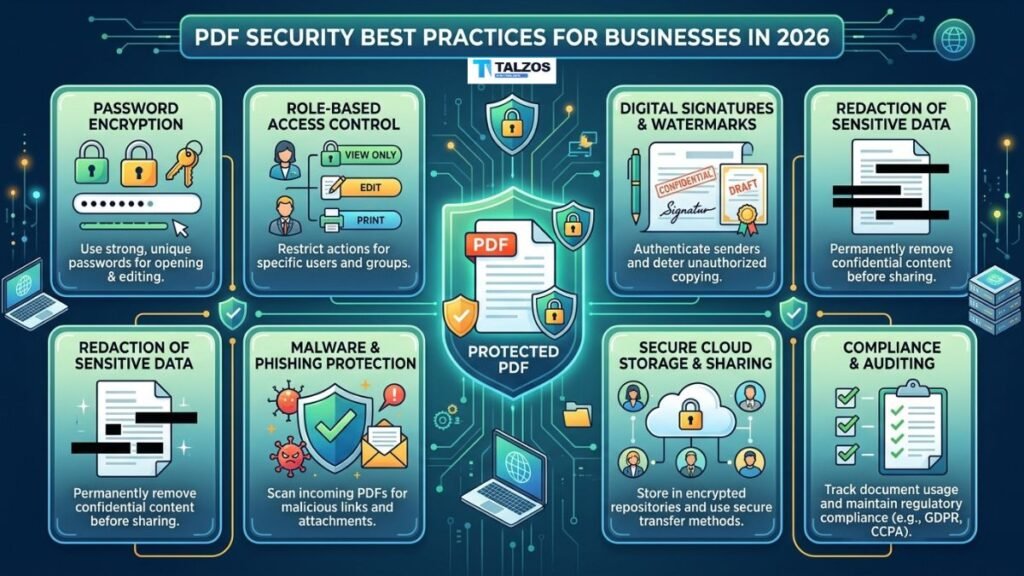
1. Encrypt with AES-256 (The Gold Standard)
Encryption scrambles your PDF so only authorized users can read it. In 2026, AES-256 is the baseline for sensitive documents like medical records, financial statements, and legal contracts.
How to apply it:
- In Adobe Acrobat: File → Protect → Encrypt → Encrypt with Password → Choose 256-bit AES
- In other editors: Look for “Security” or “Protect” → “Encrypt” → Select AES-256
Avoid older 40-bit or 128-bit encryption for anything containing personal or proprietary data.
2. Use Strong, Unique Passwords
A password is only as good as its complexity. Follow these rules:
- At least 12 characters
- Mix of uppercase, lowercase, numbers, and symbols
- Never reuse passwords across documents
- Never send the password in the same email as the PDF
Pro tip: Share passwords via a separate channel—phone call, SMS, or a secure messaging app like Signal or Teams.
3. Set Permission Controls (Owner vs. User Passwords)
PDFs support two password types:
- User password: Required to open the file
- Owner password: Required to change permissions, print, or edit
Use both for maximum control. For example:
- Allow viewing but block printing for external clients
- Prevent editing on final contracts
- Disable form filling on read-only reports
4. Redact—Don’t Just Hide—Sensitive Data
Highlighting text in black or covering it with a shape doesn’t remove the data—it’s still selectable and searchable underneath. True redaction permanently deletes the content.
Redaction checklist:
- Social Security numbers, bank details, salaries
- Client names in internal drafts
- Proprietary formulas or pricing
Always use your PDF editor’s dedicated “Redact” tool, not manual shapes.
5. Strip Metadata Before Sharing
Metadata includes author names, creation dates, revision history, and even GPS coordinates from embedded images. It’s invisible but can leak sensitive context.
What to remove:
- Author and company info
- Document history and comments
- Hidden layers or embedded files
Most editors have a “Remove Metadata” or “Sanitize Document” option under Security or File Info.
Secure Sharing and Storage Workflows
Use Encrypted Cloud Storage
Store PDFs in services with built-in encryption (at rest and in transit), like:
- Microsoft OneDrive for Business
- Google Workspace with advanced protection
- Dropbox Business with encryption keys
Enable two-factor authentication (2FA) on all accounts to block unauthorized logins.
Share via Secure Links, Not Email Attachments
Email attachments can be forwarded indefinitely. Instead:
- Upload to a secure platform (SharePoint, Box, Citrix ShareFile)
- Set link expiration (e.g., 7 days)
- Restrict to specific email domains or users
- Disable download if viewing-only is enough
This gives you control even after the file leaves your inbox.
Version Control and Audit Trails
For regulated industries, track who accessed or modified each PDF:
- Enable version history in your document management system
- Log all opens, downloads, and edits
- Review access patterns quarterly
Audit trails aren’t just for compliance—they help you spot suspicious activity early.
Compliance and Legal Considerations
Different industries have different rules, but the principles overlap:
- GDPR (EU): Encrypt personal data, limit access, and document processing
- HIPAA (US healthcare): Use AES-256, audit access, and train staff
- SOC 2: Implement access controls, encryption, and incident response
Action steps:
- Classify PDFs by sensitivity (public, internal, confidential, restricted)
- Apply security controls based on classification
- Document your PDF security policy and train employees annually
Common PDF Security Mistakes to Avoid
Even well-meaning teams slip up. Watch out for:
- Using free online tools that upload files to unknown servers → Risk of data harvesting
- Sending passwords in the same email as the PDF → Defeats the purpose of password protection
- Assuming “black box” redaction is enough → Data remains recoverable
- Reusing one password for all PDFs → One breach compromises everything
- Forgetting to remove metadata → Leaks author, location, or revision info
Treat every PDF containing client or business data as high-risk until proven otherwise.
Building a PDF Security Policy (Template Outline)
A simple policy keeps everyone aligned. Include:
- Scope: Which documents require encryption?
- Encryption standard: AES-256 for confidential, AES-128 for general
- Password rules: Minimum length, complexity, sharing method
- Redaction requirements: What must be redacted before external sharing
- Metadata removal: Mandatory for all external PDFs
- Storage and sharing: Approved platforms, link expiration rules
- Training: Annual refreshers for all staff
- Incident response: Steps if a PDF is leaked or accessed unauthorized
Keep it to 2–3 pages so it’s actually read and used.
Tools and Technologies to Consider
You don’t need enterprise-grade software for every use case, but do choose wisely:
- Adobe Acrobat Pro: Industry standard for encryption, redaction, and permissions
- Microsoft Purview: For enterprise DLP and classification
- PDF editors with local processing: Avoid tools that upload files to the cloud unless you trust their privacy policy
For small teams, even built-in tools in Office 365 or Google Workspace can handle most PDF security needs if configured correctly.
Final Checklist: Before You Send Any PDF
Run through this quick list every time:
- [ ] Is the file encrypted with AES-256?
- [ ] Are passwords strong and shared separately?
- [ ] Have permissions been set (no edit/print if not needed)?
- [ ] Is sensitive data truly redacted (not just hidden)?
- [ ] Has metadata been stripped?
- [ ] Is the sharing link set to expire and restricted to the right people?
- [ ] Is the file stored in an encrypted, access-controlled location?
If you can’t check all boxes, pause and fix the gaps before sending.