Converting a PDF into an image is useful when you need to share a document on social media, upload a page to a website, create a thumbnail, or preserve the appearance of a design. Although PDFs are excellent for printing and document sharing, many platforms do not accept them as image content.
That is where a reliable PDF image converter can help. The right tool can turn individual PDF pages into JPG, PNG, or TIFF files while maintaining readable text and sharp graphics. Some tools can also extract embedded images from inside a PDF rather than converting the entire page.
In this guide, we compare the best types of PDF image converter tools, explain their strengths and limitations, and show how to choose the right option for your needs.
What Is a PDF Image Converter?
A PDF image converter is software or an online service that changes PDF pages or embedded PDF graphics into standard image files. The most common output formats are JPG, PNG, and TIFF.
There are two different conversion processes:
- Page conversion: Turns each PDF page into a complete image.
- Image extraction: Removes individual photos, illustrations, or graphics embedded inside the PDF.
Page conversion is useful for scanned documents, posters, brochures, forms, and full-page designs. Image extraction is better when you want a particular photo or graphic without the surrounding page content.
For example, converting a restaurant menu to JPG creates an image of the entire menu page. Extracting an embedded food photograph saves only the photograph.
What to Look For in a Converter
Not every converter produces the same results. Before selecting a tool, consider the following features.
Output Formats
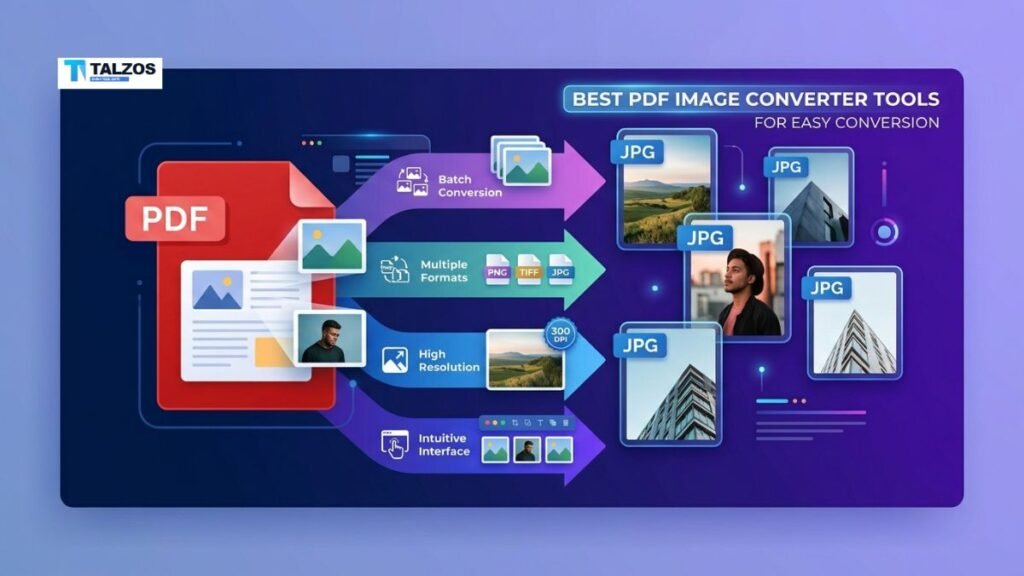
JPG is a popular choice because it creates relatively small files and works well with photographs. PNG is often better for screenshots, diagrams, logos, and images containing text because it preserves sharp edges. TIFF is commonly used when high-quality output is needed for printing, archiving, or professional publishing.
A good converter should support at least JPG and PNG. More advanced tools may also offer TIFF, JPEG 2000, BMP, or WebP.
Resolution and DPI Controls
Resolution has a major impact on image quality. Low-resolution exports may look acceptable on a phone but become blurry when printed or enlarged.
Look for tools that allow you to adjust DPI, scaling, or pixel dimensions. PDF24, for example, provides settings for image quality and DPI, with higher DPI producing larger but more detailed images.
Batch Conversion
If you have several PDFs to process, batch conversion can save considerable time. Instead of uploading or opening documents one at a time, you can convert multiple files in one operation.
Batch processing is especially useful for:
- Digital archives.
- Scanned invoices.
- Product catalogs.
- Educational materials.
- Website content preparation.
Privacy and Security
Online converters process files through a browser or cloud server. This is convenient, but you should be cautious with confidential documents.
For private files, consider a desktop application or a browser-based tool that processes files locally. Always review a service’s privacy information before uploading contracts, identification documents, medical records, or financial statements.
Ease of Use
A good tool should not require technical knowledge. Drag-and-drop uploading, clear output options, page selection, and simple downloads make the conversion process easier for beginners.
Adobe Acrobat
Adobe Acrobat is one of the most comprehensive choices for converting PDFs into images. It supports JPEG, JPEG 2000, PNG, and TIFF export formats.
To convert a PDF page using Acrobat:
- Open the PDF in Acrobat.
- Select the conversion or export tool.
- Choose Image as the output category.
- Select JPG, PNG, or TIFF.
- Choose the destination folder.
- Save the converted files.
Acrobat normally turns each page into a separate image. This makes it suitable for brochures, certificates, scanned records, and presentation slides. Its export settings can also provide better control over image quality and color.
One advantage of Acrobat is that it can also export images individually. Adobe’s documentation explains that users can select an option to export all images from a PDF, with settings for file type, color management, conversion, and extraction.
Best for
- Professional PDF workflows.
- High-quality exports.
- Multiple image formats.
- Individual image extraction.
- Users who already have an Acrobat subscription.
Limitations
- Some advanced features require a paid plan.
- The interface may feel excessive for a single quick conversion.
- New users may need time to find the correct export settings.
Adobe Acrobat Online
If you do not want to install software, Adobe offers an online PDF to JPG converter. The tool allows users to upload a PDF, select JPG, PNG, or TIFF, and download the resulting image files. Adobe states that each PDF page becomes its own image during the process.
This option is convenient when you need to convert a document occasionally. It works in a browser and avoids the need to learn a complex desktop application.
Best for
- Quick one-time conversions.
- Users who want a familiar brand.
- Converting complete PDF pages.
- Basic JPG, PNG, and TIFF output.
Limitations
- Online uploads may not be suitable for sensitive documents.
- Some features may require signing in.
- Your experience can depend on internet speed and file size.
PDF24 Tools
PDF24 Tools is a practical online option for converting PDF pages into JPG and other image formats. Its PDF-to-image tool does not require installation or registration and offers options for adjusting DPI and image quality.
The service is particularly useful when you want a straightforward workflow:
- Upload or drag your PDF into the tool.
- Select the pages to convert.
- Adjust quality or DPI if necessary.
- Start the conversion.
- Download the finished images.
PDF24 also offers desktop software, which may be preferable for users who want to work offline. Its online tools support common operating systems because they run through a browser.
Best for
- Free online conversion.
- Users who want DPI controls.
- Converting multiple pages.
- People who prefer a simple interface.
Limitations
- Online processing may not be suitable for confidential documents.
- The output is generally focused on page conversion rather than advanced editing.
- Very large files may take longer to process.
Smallpdf
Smallpdf is a well-known browser-based PDF platform that includes PDF-to-image conversion among its document tools. Its interface is designed for users who want a quick, guided workflow without dealing with technical settings.
Smallpdf can be useful when you already need other PDF features, such as compression, merging, splitting, or signing. You can upload a document, choose the relevant conversion option, and download the resulting image files.
Best for
- Beginners.
- Quick browser-based tasks.
- Users who need several PDF utilities in one place.
- Simple page-to-image conversion.
Limitations
- Free usage may have restrictions.
- Advanced features may require a subscription.
- Users should review privacy policies before uploading sensitive files.
Smallpdf is a good choice for occasional work, but professional users who need detailed resolution, color, or extraction settings may prefer a more advanced application.
iLovePDF
iLovePDF provides a collection of browser-based PDF tools, including options for converting PDF pages into image formats. Its clean interface makes it easy to upload a file and choose a conversion workflow.
The service can be convenient for students, office workers, and freelancers who need to process PDFs without installing desktop software. It is also useful when conversion is only one part of a larger task involving PDF compression, splitting, or organization.
Best for
- Simple online conversion.
- Everyday office documents.
- Users who need several basic PDF functions.
- Fast sharing and downloading.
Limitations
- Free accounts may have file or task limits.
- Cloud processing may raise privacy concerns for confidential documents.
- Complex extraction needs may require another tool.
Built-In Computer Tools
You may not need a specialized PDF image converter for a small task. Both Windows and macOS include tools that can create image files from PDF pages.
On macOS, Preview can open a PDF page and export it as a JPEG. You can select a page, choose the export command, select JPEG, and adjust quality before saving.
On Windows, you can use a PDF reader together with the Snipping Tool. This is suitable for a quick visual capture, but it is not the same as a high-quality PDF conversion. Screenshots depend on your display resolution and zoom level, so they may produce softer images.
Built-in tools are best for:
- One or two pages.
- Informal sharing.
- Quick visual references.
- Non-sensitive, low-resolution needs.
For printing or professional publishing, use a converter that supports resolution controls rather than relying on screenshots.
Desktop and Offline Converters
Offline converters are valuable when privacy, speed, or repeated processing matters. They process files locally on your computer, so you do not need to upload documents to a web server.
A desktop PDF image converter may provide:
- Batch processing.
- Page-range selection.
- Custom DPI settings.
- Multiple output formats.
- Automatic file naming.
- Offline access.
- Image extraction.
- Compression and resizing.
Offline software is particularly appropriate for companies, legal teams, healthcare offices, and anyone handling private records. The trade-off is that you may need to install updates, manage licenses, and learn more settings.
Choosing Between JPG, PNG, and TIFF
The best output format depends on what the image contains.
| Format | Best for | Main advantage | Potential drawback |
|---|---|---|---|
| JPG | Photos and online sharing | Small file size | Lossy compression |
| PNG | Text, diagrams, logos, screenshots | Sharp detail and transparency | Larger files |
| TIFF | Printing and archiving | High-quality output | Very large files |
If you are converting a photograph-heavy brochure for a website, JPG is usually the practical choice. If you are converting a page with small text or line drawings, PNG may produce a cleaner result. For professional print workflows, TIFF can preserve more information but may create very large files.
How to Get Better Conversion Results
Use these tips regardless of which PDF image converter you choose:
- Start with the highest-quality PDF available.
- Select a higher DPI for printing or small text.
- Convert only the pages you need.
- Use PNG for logos and diagrams.
- Use JPG for photographs and web sharing.
- Avoid taking screenshots when quality matters.
- Keep the original PDF as a backup.
- Check image dimensions before publishing.
- Crop unnecessary margins after conversion.
- Avoid converting the same JPG repeatedly.
- Use offline software for confidential documents.
- Confirm that you have permission to reuse copyrighted content.
If the resulting image looks blurry, increasing the JPG quality alone may not solve the problem. The original PDF may already contain a low-resolution scan or compressed image. In that case, try a higher DPI export or locate the original source image.
Which PDF Image Converter Should You Choose?
The best option depends on your priorities.
- Choose Adobe Acrobat for professional controls and individual image extraction.
- Choose Adobe Acrobat Online for a trusted, quick browser-based conversion.
- Choose PDF24 Tools for free conversion with useful DPI and quality settings.
- Choose Smallpdf for a beginner-friendly online experience.
- Choose iLovePDF when you want conversion alongside other everyday PDF tools.
- Choose a desktop converter when you regularly process files or work with confidential documents.
- Choose built-in tools when you only need a quick, informal image of a page.
Final Thoughts
The best PDF image converter is not necessarily the one with the most features. It is the tool that matches your document, output format, privacy requirements, and desired image quality.
For occasional page conversion, an online service is fast and convenient. For professional work, Adobe Acrobat or an offline desktop application offers more control. If you need a specific embedded photo or graphic, choose a tool that supports image extraction instead of simply converting every PDF page.
Once you select the right format and resolution, converting PDFs into clean, shareable images becomes a simple part of your everyday workflow.